




The right sidebar is a contextual information panel that can be opened when you're viewing a conversation. It shows details about the contact and ticket you're currently working with.
Key features:
• Edit contact and ticket information (including Journey Runs)
• View and update custom field values
• Access the contact/profile conversation history
• View connected Boards
The sidebar can be collapsed if you need more screen space for the conversation itself.
These icons give you quick access to:
Ticket Details
The ticket details panel in the right sidebar gives you quick access to key information without leaving the conversation. Here's why it's useful:
At-a-glance context — See the ticket's status, priority, assigned team/user, labels, and custom fields while you're reading or responding to the customer.
Fast updates — Update custom fields directly from the sidebar instead of navigating away.
Custom fields visibility — If your team uses custom fields (like order numbers, account IDs, or issue categories), they're displayed here so agents have the context they need to help the customer.
Contact info — The sidebar often shows the contact's profile, previous tickets, and notes, helping agents personalise their response.
Workflow efficiency — Keeps everything in one view so agents don't need to click around to find or update ticket data.
In short, it's designed to help agents work faster and stay focused on the conversation while still having full control over ticket management.

It includes:
- Contact profile - Name, email, phone number, and any custom contact fields
- Contact labels - Tags assigned to this contact
- Ticket details - Current ticket status, assigned team/user, and ticket labels
- Custom fields - Any custom ticket or contact fields your team has configured
- Linked profiles - Connected channel identities (e.g., if the same person messaged via WhatsApp and email)
- Previous conversations - History of past tickets with this contact
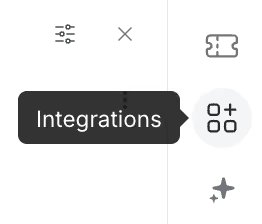
Integrations
The Integrations tab in the right sidebar of a conversation is used to view and manage external platform connections tied to that specific contact or ticket.
Common uses include:
- Viewing linked data from connected tools like Shopify, WooCommerce, Magento, or custom integrations — showing order history, customer details, or account info
- Accessing external records without leaving the conversation (e.g., seeing a customer's recent orders or subscription status)
- Triggering actions in connected platforms when integrations support it (like creating a ticket in another system)
In short, it gives agents context from other business tools right alongside the conversation, so they don't have to switch between apps to get the full picture of who they're helping.
Find out how to connect integrations with Trengo via this link here
How to open and switch views
- Select a ticket
- Click an icon once to open the sidebar and view that section
- Click the same icon again to close the sidebar
- Click a different icon while the sidebar is open to switch to another view
- The browser will remember your final sidebar setting and next time you log in, it will open the same panel you viewed last after selecting a ticket.
You can easily customise what displays in the Tickets and Integrations sidebars. The "Edit view" button (for toggling what displays in ticket/integration sidebars) can be found in the header.

