




With WhatsApp calling, your customers can call your WhatsApp number, and your agents can call customers back, right from Trengo. This article explains what you need before you start, how to turn calling on, and how to decide who answers incoming calls.
Before you start
- A WhatsApp Business API number. Calling doesn't work on numbers that are also used in the WhatsApp Business app on a phone (coexistence).
- A messaging limit of at least 2,000 customers a day on that number. WhatsApp doesn't allow calling below that.
- A supported country. Numbers from the United States, Canada, Egypt, Vietnam and Nigeria can receive WhatsApp calls, but can't call customers. This is a WhatsApp rule.
- Balance in your Trengo account. Calls are paid from your balance. See Costs below.
- Agents ready to take calls. They use Trengo in a computer browser, allow microphone access, have access to the WhatsApp channel, and are set as available for calls.
Good to know
- Once calling is on, your customers see a call button at the top of their WhatsApp chat with you and on your business profile, so they can call you at any time.
- Customers can only make and take WhatsApp calls in WhatsApp on their phone, not on WhatsApp Web or WhatsApp Desktop.
- To call a customer, you need their permission first. Read Asking a customer for WhatsApp call permission.
Turn on WhatsApp calling
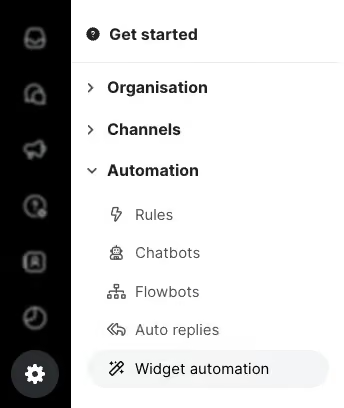
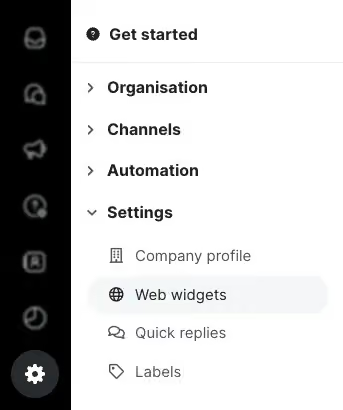
- Go to Settings > Channels > WhatsApp and open your WhatsApp number.
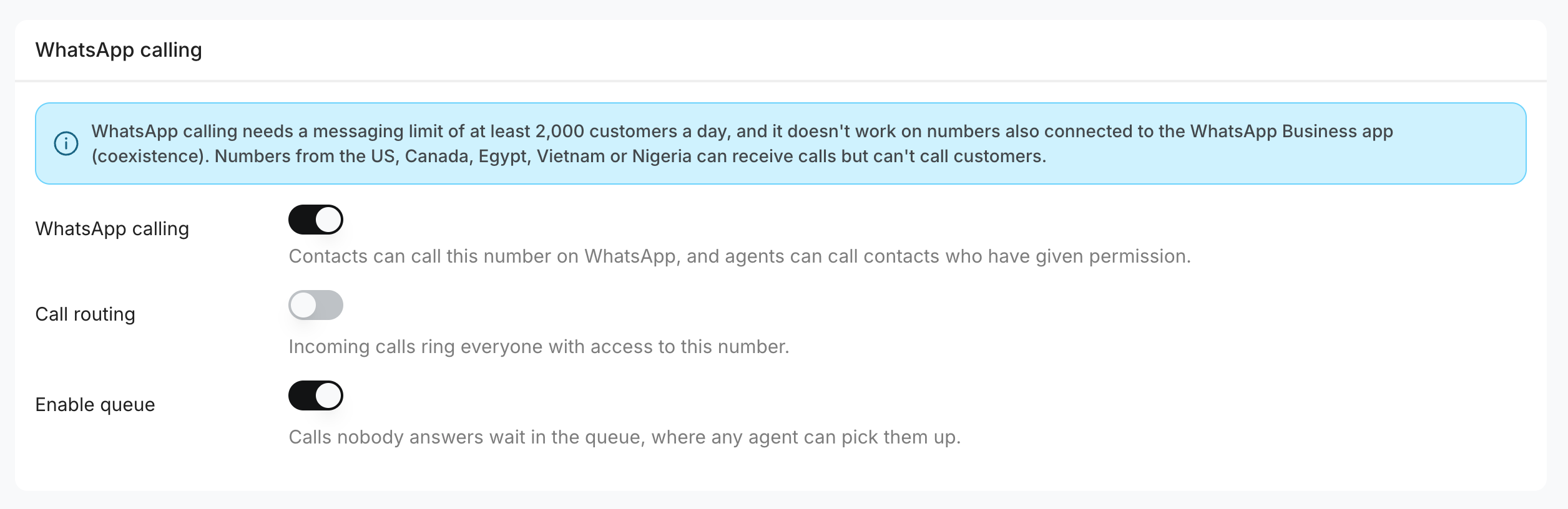
- Check the banner at the top: it tells you if the number can't use calling, and why.
- In the WhatsApp calling section, switch calling on and save.
- While Trengo sets up calling, you see Setting up calling. This can take up to a minute. When it's done, the calling settings appear.
Choose who answers incoming calls
With Call routing off, an incoming call rings everyone with access to the number.
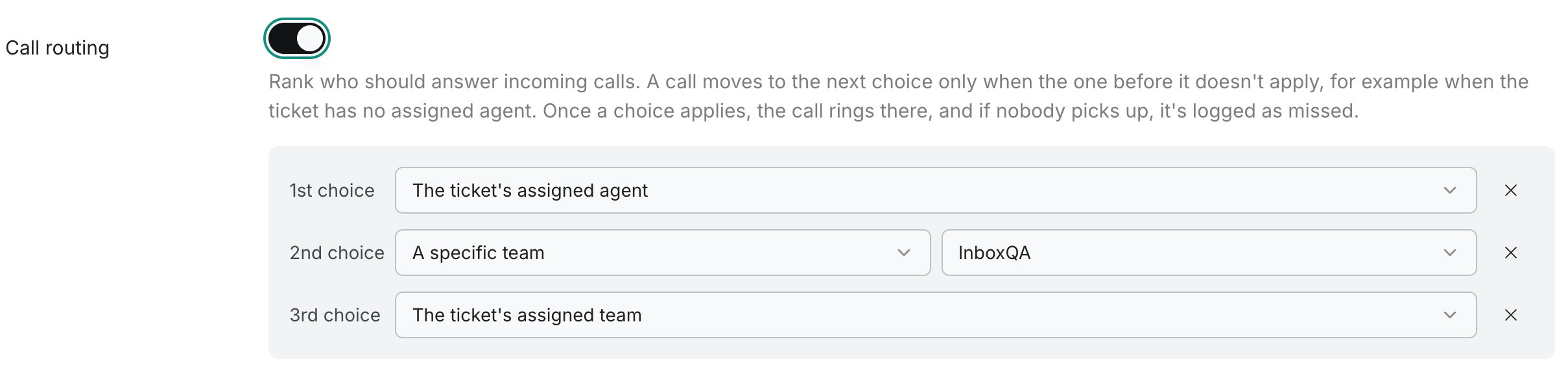
Switch Call routing on to rank who should answer. You can add up to three choices:
- The ticket's assigned agent
- The ticket's assigned team
- A specific team
- Everyone with access to this number
A call moves to the next choice only when the one before it doesn't apply, for example when the ticket has no assigned agent. Once a choice applies, the call rings there. If nobody picks up, it's logged as a missed call on the ticket.
Use the queue
With Enable queue on, a call that nobody can pick up right away waits in the queue until an agent is free. With it off, the call is logged as a missed call straight away, so an agent can call back.
Costs
- Calls from customers: €0.012 per minute. WhatsApp doesn't charge for them.
- Calls to customers: €0.007 per minute, plus WhatsApp's rate for the customer's country. You can find those rates in WhatsApp's calling pricing.
- Call permission requests are billed like any other WhatsApp template message.
Troubleshooting
If you see Calling is unavailable, or a call doesn't go through, check these one by one:
- The number doesn't meet the requirements. It's a coexistence number, it's from a country that can't call customers, or its messaging limit is below 2,000. Fix the requirement, or use another number.
- Your balance is too low. Top up your balance.
- The customer hasn't given permission, or it has expired. Ask again. Read Asking a customer for WhatsApp call permission.
- You've asked for permission too often. WhatsApp allows one request a day and two a week per customer. Wait, or wait for the customer to call you.
- You've reached the daily call limit. WhatsApp allows 100 connected calls a day to the same customer. Try again after 24 hours.
- WhatsApp paused calling on your number. This can happen when customers block or report your number, or when many of your calls go unanswered. Calling comes back after the pause. Only call customers who expect your call.
- You're already on a call, or your browser has no microphone access. Finish the current call, or allow microphone access in your browser settings.
Related articles
- Making and receiving WhatsApp calls
- Asking a customer for WhatsApp call permission
- WhatsApp Coexistence: use the WhatsApp Business app and Trengo together

