




Once WhatsApp calling is turned on for a number, you can answer your customers' WhatsApp calls and call them back from Trengo. This article explains how incoming and outgoing calls work, and where you find them afterwards.
Before you start
- Use Trengo in a computer browser and allow microphone access. WhatsApp calls don't work in the Trengo mobile app yet.
- Set yourself as available for calls, and make sure you have access to the WhatsApp channel.
- Calling needs to be turned on for the number. Read Setting up WhatsApp calling.
Answer a call
When a customer calls, the Voice widget shows who is calling and on which number. Click Answer to take the call, or Ignore. Who gets the call depends on your call routing settings.
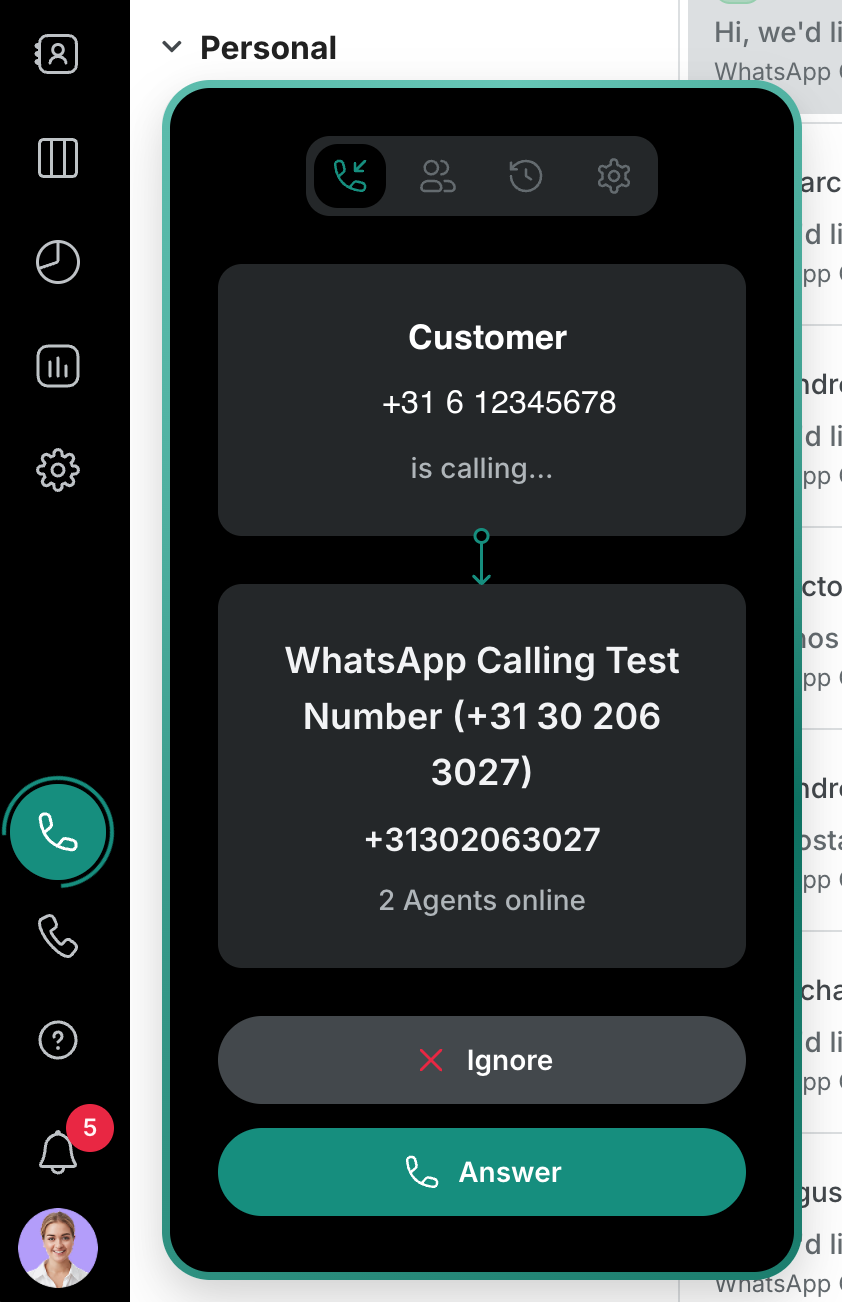
The call lands in the customer's WhatsApp ticket, the same ticket a message from them would land in. If nobody answers, it's logged there as a missed call, so you can call back.
Call a customer from a ticket
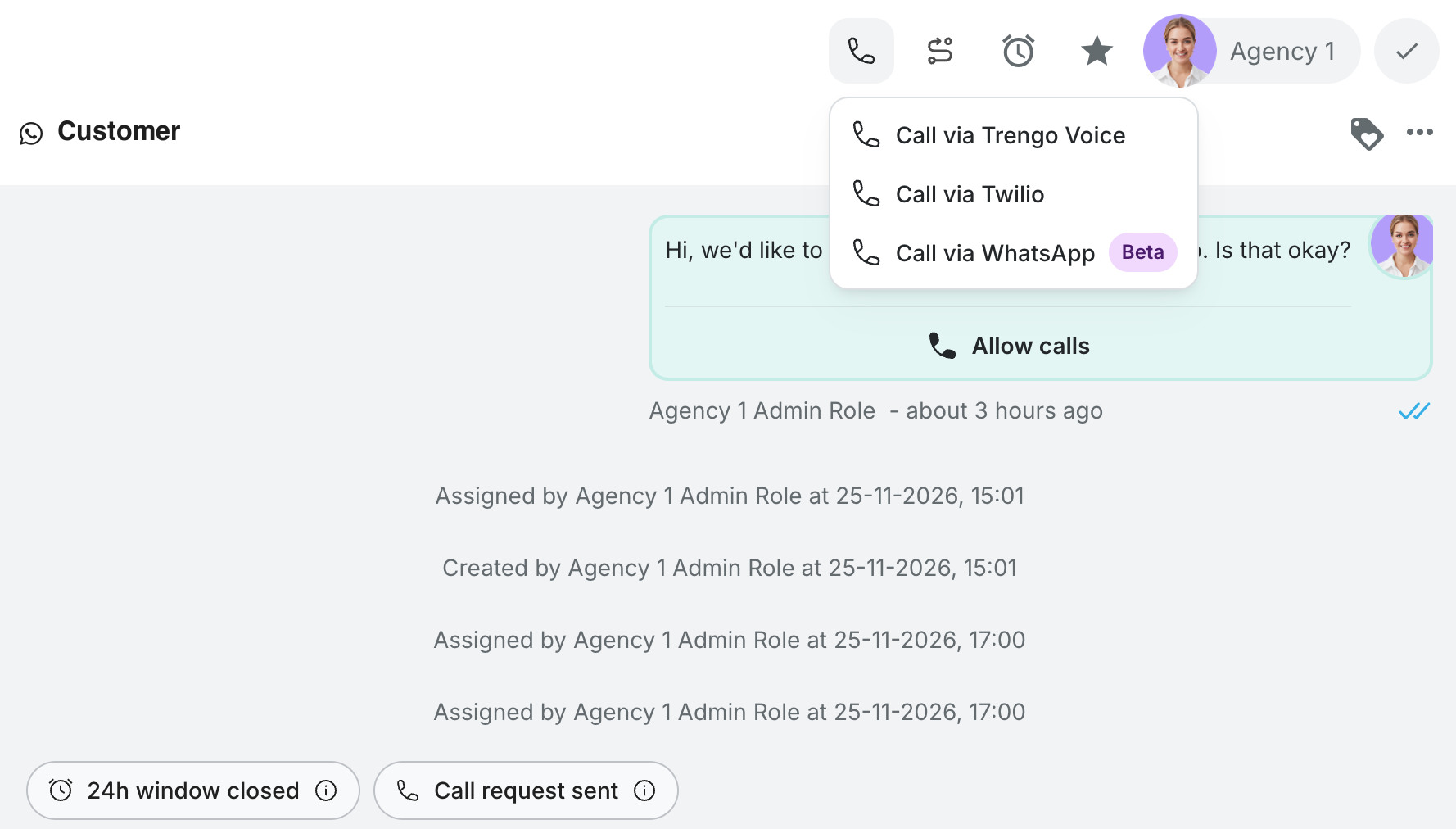
- Open the customer's WhatsApp ticket.
- Click the phone icon in the ticket header and choose Call via WhatsApp.
You can only call customers who have given permission. If they haven't, ask them first. Read Asking a customer for WhatsApp call permission.
Call a customer from the Voice widget
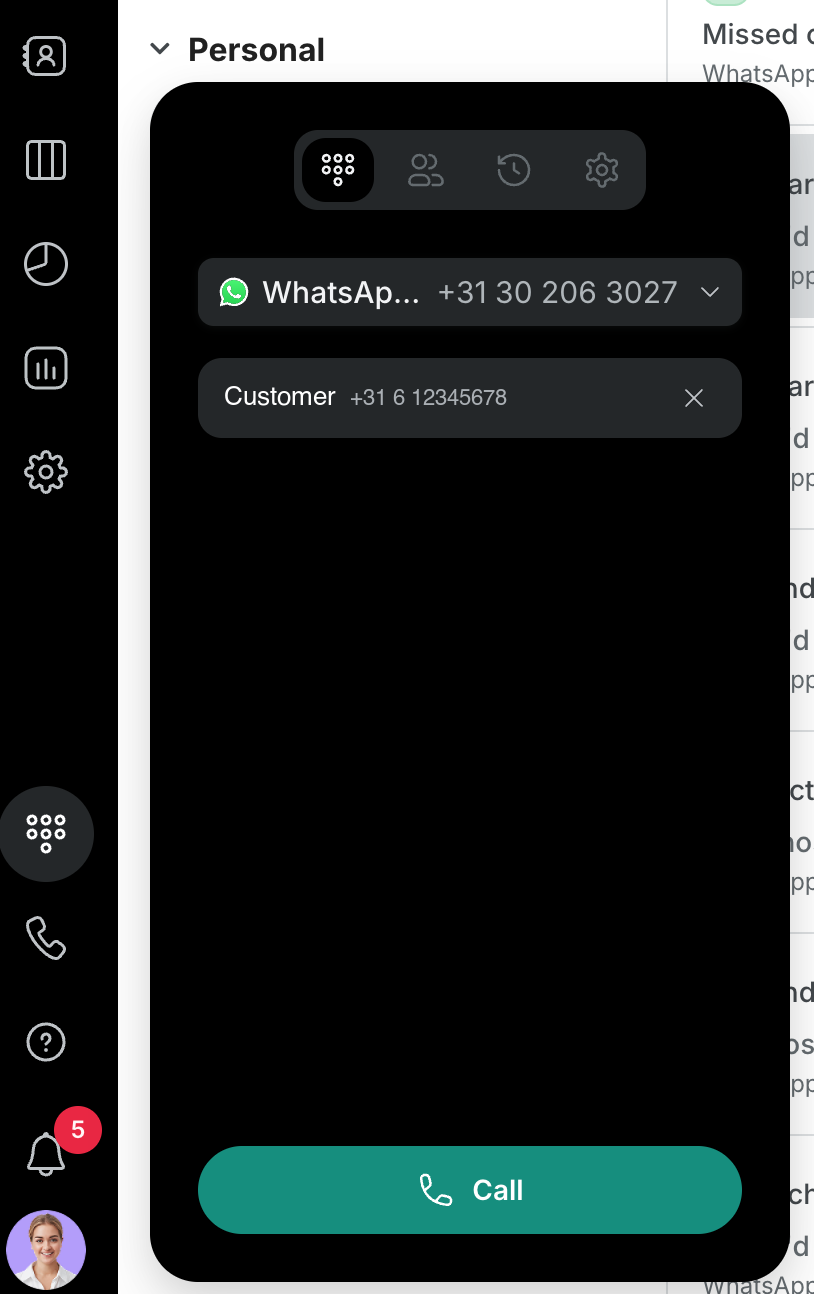
- Open the Voice widget and pick your WhatsApp number.
- Search for the contact.
- If the contact allows calls, click Call.
- If not, you see No permission. Select a language and click Request permission. The request opens a new ticket, assigned to you, where you can follow the customer's answer.
You can't call or ask a number that isn't a contact yet. Create the contact first, then search for them in the widget.
During a call
Use Mute to switch your microphone off and on, and Hang up to end the call. You can take one call at a time: finish your current call before starting or accepting a new one.
After a call
Every call shows on its ticket, including calls nobody answered.
The History tab in the Voice widget lists the calls on all WhatsApp numbers you have access to, including calls on your colleagues' tickets. From there, you can call a customer back straight away.
Good to know
- Calls don't start rules, journeys or the AI agent, and they aren't sent to your message webhooks. The AI agent keeps answering typed messages on the channel.
- Transferring and forwarding WhatsApp calls isn't possible yet.
Related articles

