





Guiding returns, refunds, and payment support with AI Agent
Return, refund, and payment questions often require your team to check policies, order details, and customer information. This can slow down response times and lead to inconsistent answers.
With AI Agent, you can automate policy-based answers and help customers get faster support for returns, refunds, and payment-related questions.
Before you start
Before setting up this automation, make sure you have:
- A Shopify or WooCommerce store;
- Access to your Trengo account;
- Permission to create or edit AI Agents;
- Your return and refund policy available in Trengo;
You’ll also need to complete the setup for your webshop integration:
Step 1: Create an AI Agent
Create a new AI Agent in Trengo.
- Go to AI Agents in Trengo;
- Click Create AI Agent;
- Choose the quick setup option, if available;
- Follow the steps to create your AI Agent.
Step 2: Add an integration action
Add your webshop integration as an action.
- Open your AI Agent;
- Go to Capabilities;
- Click Add integration action;
- Select your webshop integration:
- Shopify, or
- WooCommerce
This allows the AI Agent to use order and refund data when helping customers.
Step 3: Add your return and refund information
Make sure your AI Agent has access to your return, refund, and payment policies.
Add information such as:
- Return conditions;
- Return window;
- Refund processing time;
- Payment methods;
- Exchange policy;
- Exceptions, such as final sale items;
- Instructions for starting a return.
This helps the AI Agent give answers that match your company policy.
Step 4: Add the returns, refunds, and payment Skill
First add the corresponding Skill to your AI Agent.
You can find these Skills by clicking on add Skills and selecting the right template from the list available:
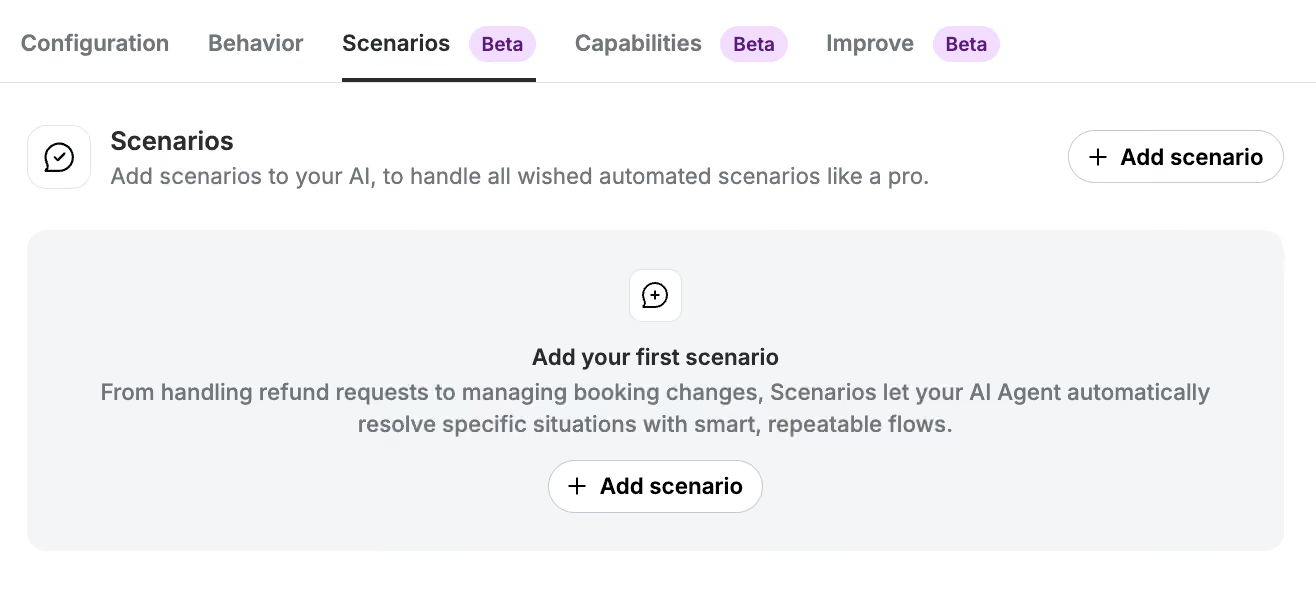
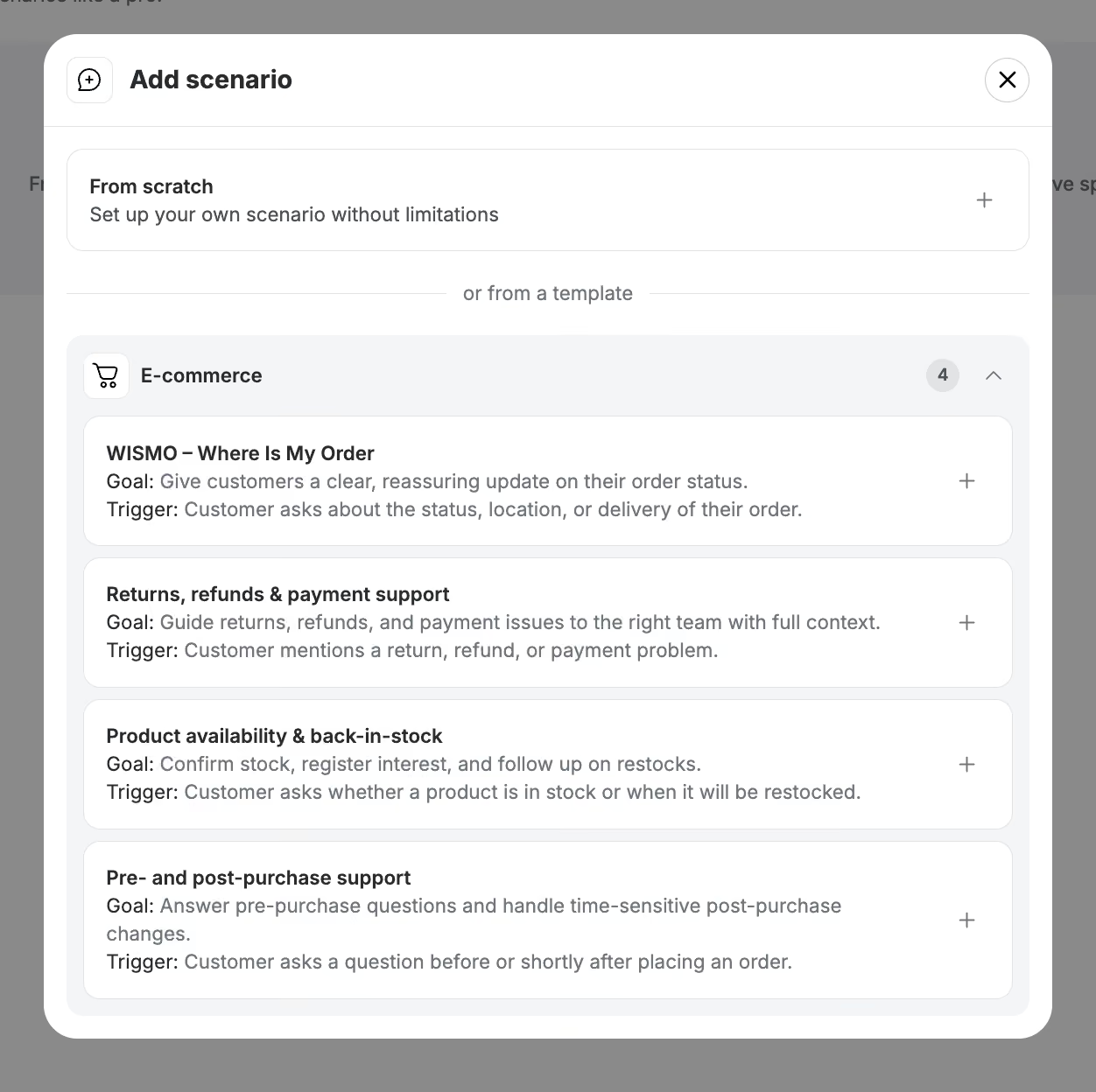
After adding the Skill, review it and make adjustments where needed. For example, you can add your return conditions, refund timelines, or escalation rules.
Step 5: Configure your AI Agent
Set up the rest of your AI Agent.
Make sure to review:
- Configuration
- Behaviour
- Connected channels
- Handover rules
- Escalation rules for complex payment issues
- Instructions for when a human agent should take over
For example, you may want the AI Agent to hand over conversations when a customer asks for a refund exception or reports a payment failure.
Step 6: Test the automation
Before publishing your AI Agent, test the automation in Preview.
Use example customer questions such as:
- “How do I return my order?”
- “When will I receive my refund?”
- “Can I exchange this item?”
- “Has my refund been processed?”
- “Why did my payment fail?”
Check whether the AI Agent gives accurate answers and hands over the conversation when needed.
Step 8: Publish your AI Agent
When everything works as expected, publish your AI Agent.
- Open your AI Agent;
- Click Publish;
- Confirm that you want to go live.
Your AI Agent can now help customers with returns, refunds, and payment questions.
What this automation can help with
Once live, the AI Agent can help customers with:
- Return instructions;
- Refund timelines;
- Payment status questions;
- Exchange questions;
- Return eligibility;
- Refund status;
- Policy-based answers.
Note: AI Agent helps guide customers through returns, refunds, and payment questions by providing information and instructions based on your policies. It does not automatically process returns, issue refunds, or make payment changes. When action is required, the conversation will be handed over to your team.

