




Integrating WooCommerce Customer Account with Trengo AI Agent
With the WooCommerce Customer Account integration, your AI Agent can look up order details from WooCommerce and help customers with questions about their order, delivery, returns, and refunds.
In this article, we’ll show you how to generate WooCommerce API keys, optionally install shipment tracking, and connect WooCommerce to Trengo.
Before you start
Before setting up the integration, make sure you have:
- Access to your WordPress admin panel;
- WooCommerce 3.5 or higher;
- A WordPress admin or shop manager account;
- A WooCommerce store that uses HTTPS.
You’ll need to copy the following details from WooCommerce:
- Store URL, for example
mystore.example.com - Consumer Key
- Consumer Secret
Generate WooCommerce API keys
First, create a WooCommerce REST API key. Trengo uses this key to read order information from your WooCommerce store.
- Log in to your WordPress admin panel;
- Go to WooCommerce;
- Click Settings;
- Open the Advanced tab;
- Click REST API;
- Click Add key.
Create the API key
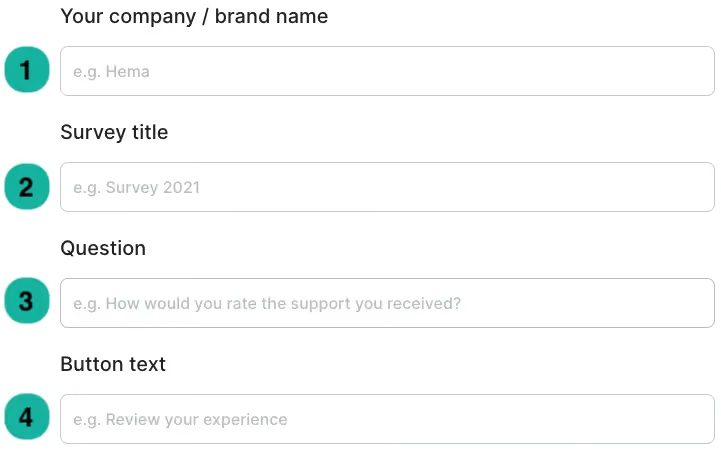
Fill in the form with the following details:
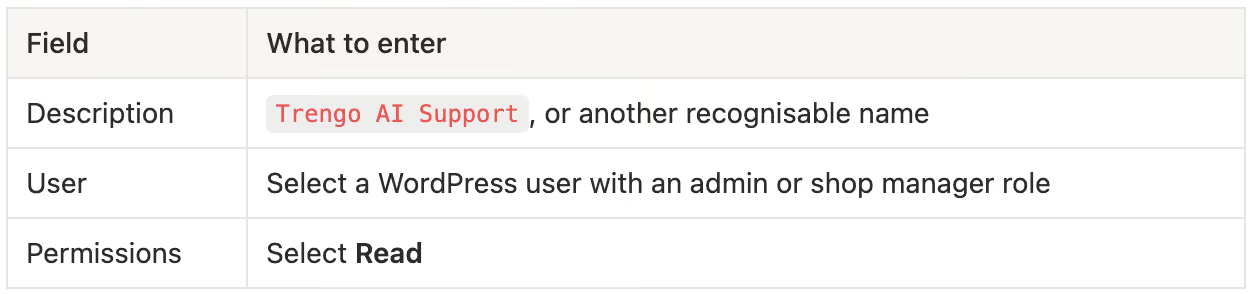
Important: Select Read permissions only. Trengo only needs to read order information and does not change anything in your WooCommerce store.
Click Generate API key.
Copy the Consumer Key and Consumer Secret
After generating the API key, WooCommerce will show you:
- Consumer Key, starting with
ck_ - Consumer Secret, starting with
cs_
Copy both values and store them somewhere safe.
Note: The Consumer Secret is only shown once. If you lose it, you’ll need to revoke the key and generate a new one.
Optional: Set up shipment tracking
Trengo AI Agent can also show shipment tracking information, such as the carrier name, tracking number, tracking URL, and shipping date.
To use this, your WooCommerce store needs the Advanced Shipment Tracking for WooCommerce plugin by Zorem.
Without this plugin, the integration still works. AI Agent can still look up orders and show order details, but shipment tracking information won’t be available.
Install the shipment tracking plugin
- In your WordPress admin panel, go to Plugins;
- Click Add New;
- Search for Advanced Shipment Tracking for WooCommerce;
- Find the plugin by Zorem;
- Click Install Now;
- Click Activate.
Check if tracking information is available
After installing the plugin, check whether shipment tracking is visible in WooCommerce.
- Go to WooCommerce;
- Click Orders;
- Open a shipped order;
- Check whether carrier and tracking information is visible in the order details.
The plugin adds a shipment tracking section to your WooCommerce orders.
Enable shipment tracking in Trengo
The shipment tracking option is disabled by default in Trengo, because not every WooCommerce store uses the shipment tracking plugin.
After confirming the plugin is active:
- Go to the WooCommerce Customer Account integration settings in Trengo;
- Enable the shipment tracking option.
Connect WooCommerce Customer Account in Trengo
After generating your API keys, you can connect WooCommerce to Trengo.
- Go to Trengo;
- Open the WooCommerce Customer Account integration setup for AI Agent;
- Fill in the following fields:
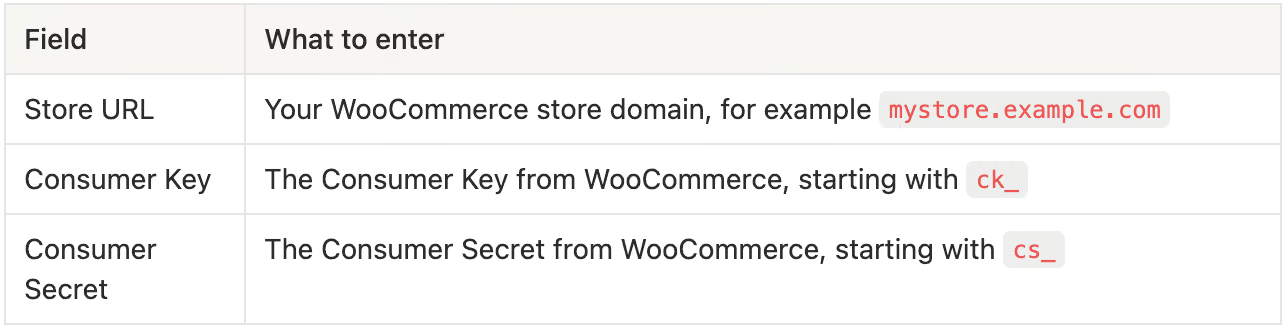
- Save the integration.
🎉 Your WooCommerce Customer Account integration is now connected to Trengo AI Agent.
What your AI Agent can do with this integration
Once the integration is connected, Trengo AI Agent can help customers with WooCommerce order questions.
It can look up:
- Orders by customer email;
- Full order details;
- Order status and order dates;
- Payment, discount, shipping, tax, and refund information;
- Billing address details;
- Shipping address details;
- Product names, SKUs, quantities, and prices;
- Shipping method and shipping costs;
- Customer notes;
- Shipment tracking details, when the shipment tracking plugin is installed.
To protect customer data, sensitive information such as phone numbers, internal payment IDs, and IP addresses is automatically hidden.

