




Automating product availability and back-in-stock questions with AI Agent
Product availability questions can cost you sales when customers leave without getting an answer. Customers want to know whether a product is in stock, when it will be available again, or whether there is a similar alternative.
With AI Agent, you can automate product availability answers, suggest alternatives, and help customers continue their purchase journey.
Before you start
Before setting up this automation, make sure you have:
- A Shopify or WooCommerce store;
- Access to your Trengo account;
- Permission to create or edit AI Agents;
- Product information available in your webshop;
You’ll also need to complete the setup for your webshop integration:
Step 1: Create an AI Agent
Next, create a new AI Agent in Trengo.
- Go to AI Agents in Trengo;
- Click Create AI Agent;
- Choose the quick setup option, if available;
- Follow the steps to create your AI Agent.
Step 2: Add an integration action
After creating your AI Agent, add the webshop integration as an action.
- Open your AI Agent;
- Go to Capabilities;
- Click Add integration action;
- Select your webshop integration:
- Shopify, or
- WooCommerce
This allows the AI Agent to use webshop data when helping customers with product availability questions.
Step 3: Add the product availability Skill
First add the corresponding Skill to your AI Agent.
You can find these Skills by clicking on add Skills and selecting the right template from the list available:
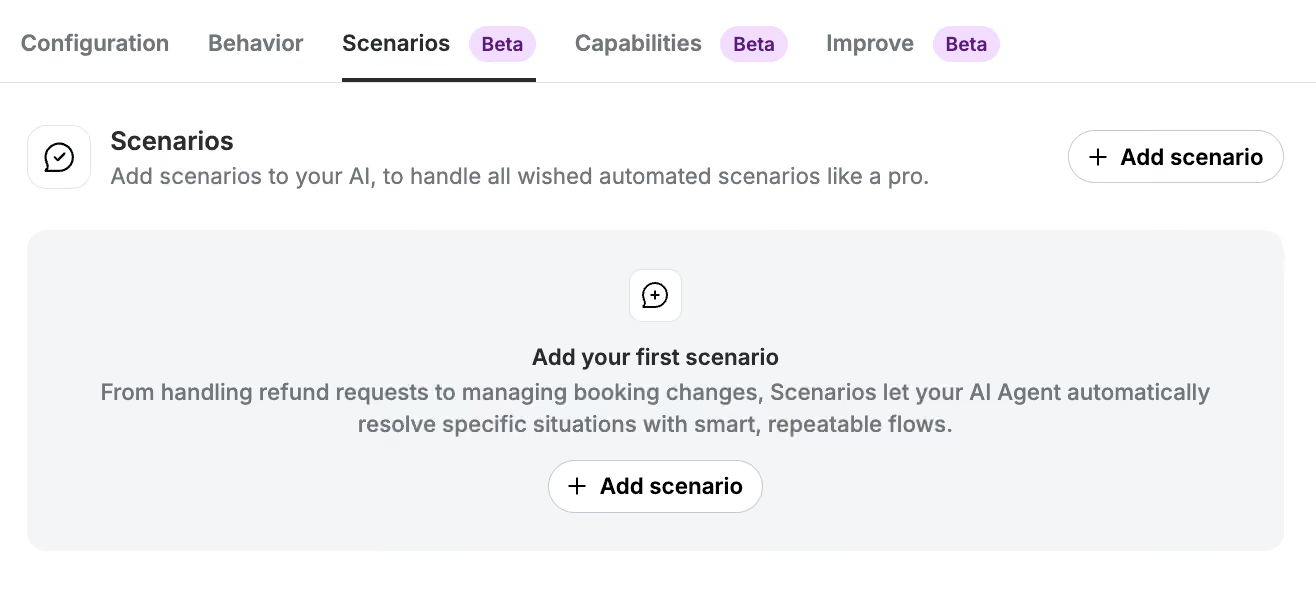
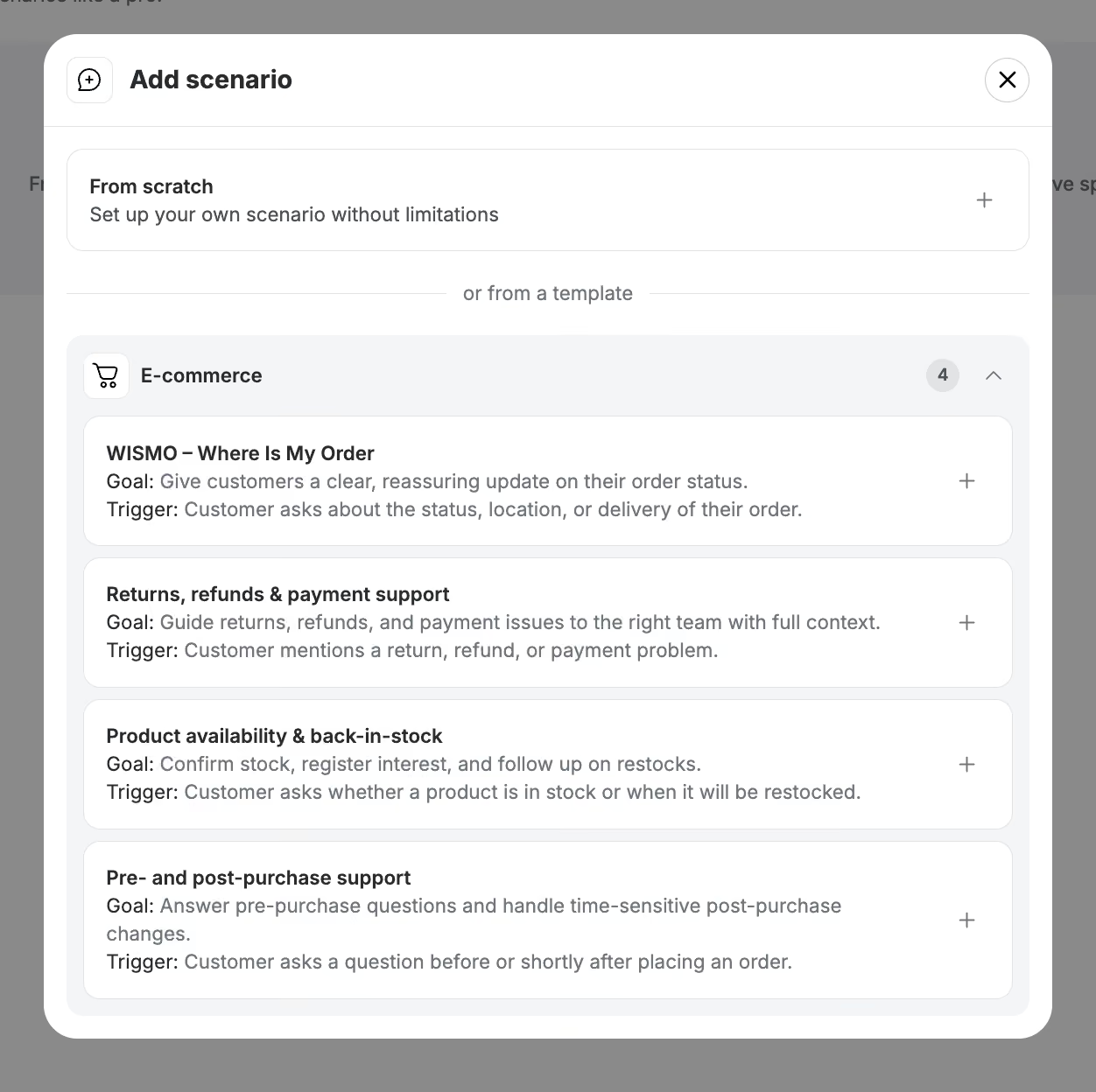
After adding the Skill, review it and make adjustments where needed. For example, you can include instructions on how to suggest alternatives or when to hand over the conversation.
Step 4: Configure your AI Agent
Set up the rest of your AI Agent.
Make sure to review:
- Configuration
- Behaviour
- Connected channels
- Handover rules
- Instructions for unavailable products
- Instructions for alternative product suggestions
You can also add guidance on how the AI Agent should respond when a product is out of stock or discontinued.
Step 5: Test the automation
Before publishing your AI Agent, test the automation in Preview.
Use example customer questions such as:
- “Is this product in stock?”
- “When will this item be available again?”
- “Do you have this in another size?”
- “Can you recommend a similar product?”
- “Can I get notified when this is back in stock?”
Check whether the AI Agent gives helpful answers and follows your instructions for unavailable products.
Step 6: Publish your AI Agent
When everything works as expected, publish your AI Agent.
- Open your AI Agent;
- Click Publish;
- Confirm that you want to go live.
Your AI Agent can now help customers with product availability and back-in-stock questions.
What this automation can help with
Once live, the AI Agent can help customers with:
- Product availability questions;
- Stock-related questions;
- Product alternatives;
- Size or variant availability;
- Back-in-stock questions;
- Pre-purchase product guidance.

