




We're moving forward with a new way to access Trengo on desktop: using a Progressive Web App (PWA). This means the Trengo desktop app is no longer available, but you can still get a native app-like experience directly from your browser.
A PWA is a web-based app that works just like a native desktop app. It lives in your taskbar or dock, supports notifications, and is always up-to-date, no downloads or manual updates needed.
How to install Trengo as a PWA on desktop
Follow the steps below to install Trengo on your desktop. We've broken it down by browser.
💡 We strongly recommend using Chrome. It offers the best compatibility with Trengo's PWA, including full notification support and the most reliable install experience.
In Chrome (recommended) — macOS & Windows
1. Open Trengo in Chrome
Go to: 👉 https://app.trengo.com
2. Install Trengo as a desktop app
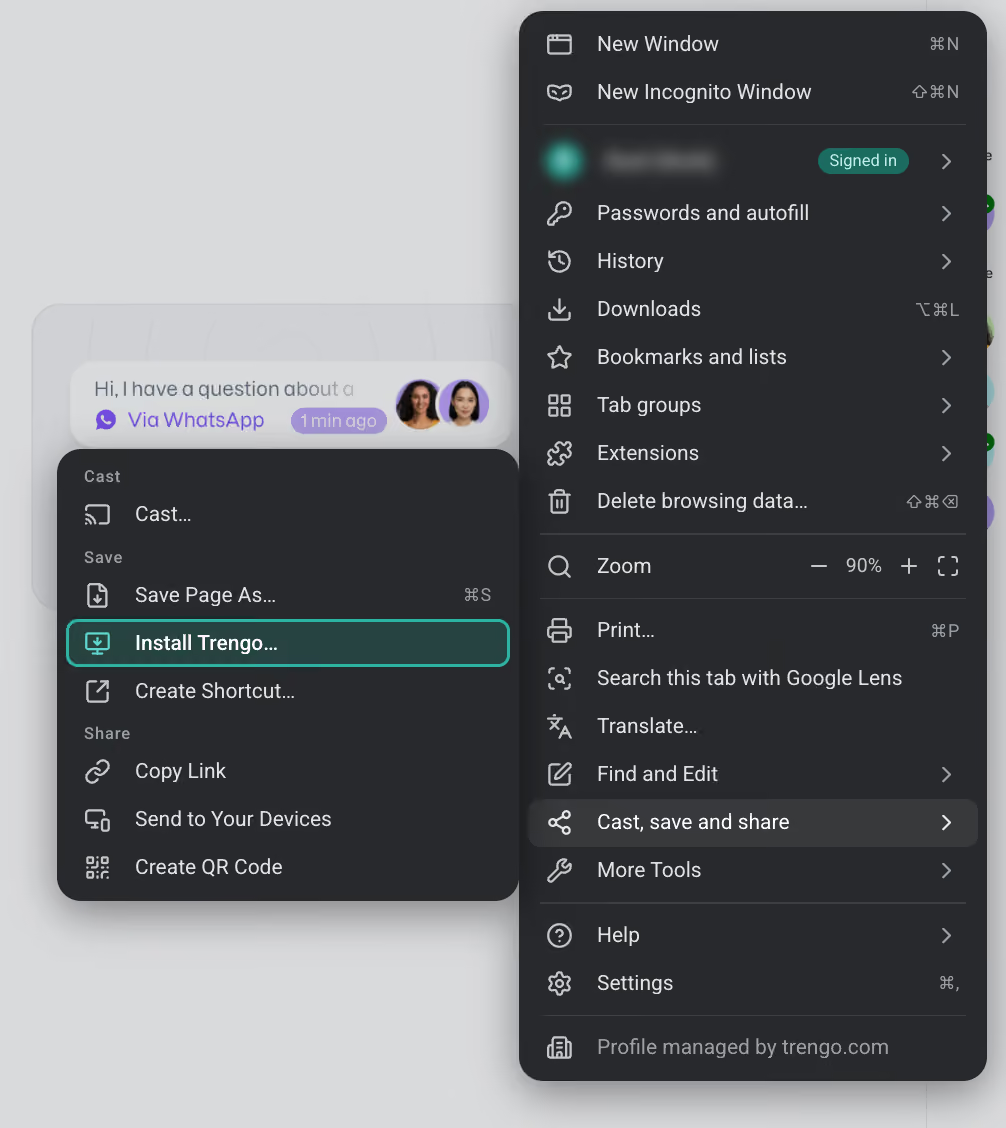
- Click the three-dot menu (⋮) in the top-right corner of Chrome
- Click Cast, save and share
- Click Install page as app
- Click Install to save the app to your desktop
Trengo will open as a standalone window, separate from your browser. On macOS, it will also appear in your Applications folder and Launchpad. On Windows, it will appear in your Start menu and taskbar.
3. Enable notifications
Once Trengo is open:
- You'll see a prompt asking you to allow notifications. Click Allow.
- This is required to receive real-time messages, updates, and alerts from Trengo.
In Safari — macOS only
1. Open Trengo in Safari
Go to: 👉 https://app.trengo.com
2. Add Trengo to your Dock
From the menu bar, click File > Add to Dock. Give the app a name and click Add.
Trengo will now appear in your Dock, just like any other app.
3. Enable notifications
Once you open Trengo from your Dock:
- You'll see a prompt asking you to allow notifications. Click Allow.
- This step is necessary for receiving real-time messages, updates, and alerts from Trengo.
⚠️ Note: Safari has more limited PWA support compared to Chrome. For the best experience, we recommend switching to Chrome.
Managing your notifications
You can manage your notification preferences at any time in your Trengo profile settings:
- Click your profile icon
- Go to Edit your profile > Preferences
Toggle on Received notifications to enable notifications to your device.
Not seeing the toggle? This means notifications are currently blocked at the browser or system level. You'll need to enable them manually first. Here's how: Enable push notifications in Trengo

