




Connect your TikTok Business Account to Trengo to manage TikTok Direct Messages alongside your other channels. This connects TikTok Direct Messages only – it does not connect TikTok Shop.
Before you start
- Make sure you have a TikTok Business Account. A personal TikTok account can't be used to connect. Switching your account type to personal will stop the messages from arriving.
- Pay attention to region restriction: TikTok has not opened its messaging API to accounts registered in the EEA, Switzerland or the UK, and Trengo does not support US-registered accounts yet. You can still connect the channel from anywhere: the restriction decides whether messages arrive, not whether the connection succeeds. Registration location means the country the TikTok account was signed up in, not where the business operates. The restriction also works the other way around: a message sent from a TikTok account in the EEA, Switzerland or the UK never reaches Trengo, whatever country the business account is registered in.
- Update your direct message settings: In the TikTok app, go to Profile → Menu → Settings and privacy → Privacy → Direct messages, and set both Potential connections and Others on TikTok to Inbox. On Requests, a message from anyone who does not already follow the account waits in the TikTok app until the account owner accepts it by hand, and nothing reaches Trengo. Inbox is only offered on a registered Business or Organisation account. On Inbox, everything TikTok delivers arrives in Trengo. TikTok's own safe mode and keyword filters still apply on their side, but Trengo does not filter TikTok messages.
- Make sure you're logged in to the correct TikTok account in your browser before you start. This avoids accidentally reconnecting or authorising the wrong account.
Good to know
The customer has to message you first. TikTok does not allow businesses to start a conversation – only to reply. This means you can't open a new TikTok conversation from Trengo; you can only respond once a customer has messaged your TikTok account.
How to connect TikTok
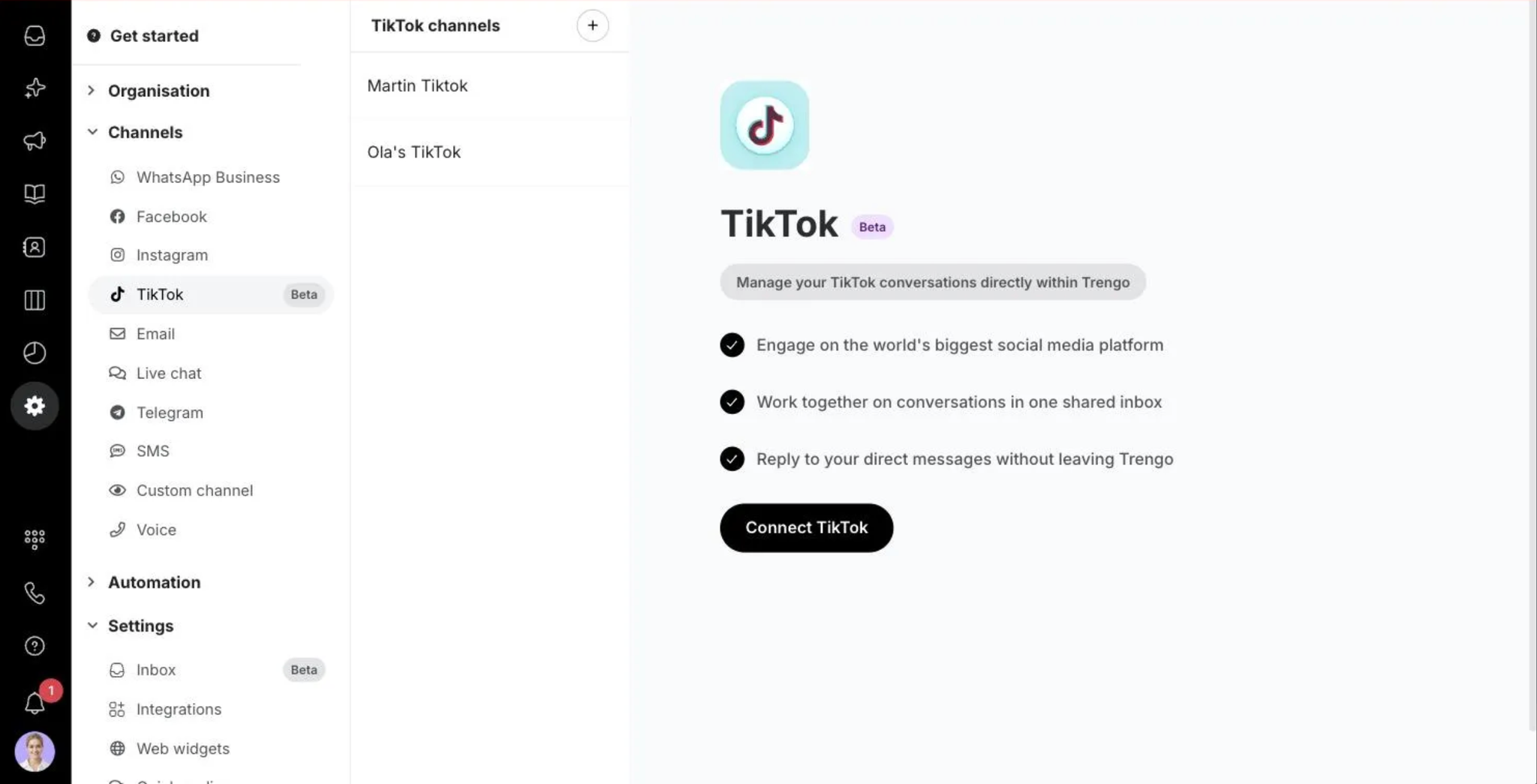
- Go to Settings → Channels → TikTok. This page shows any TikTok channels you've already connected, along with a Connect TikTok button.
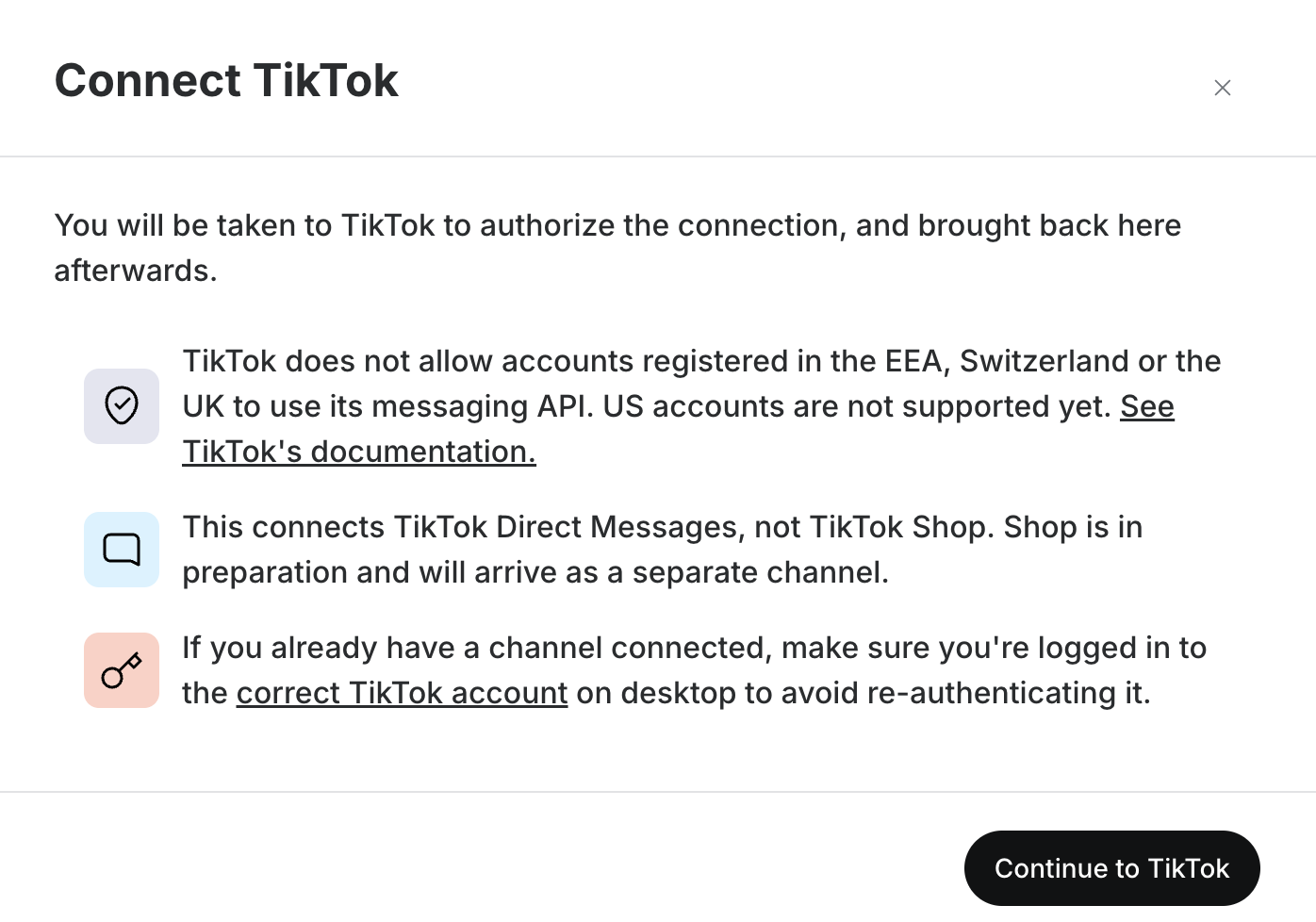
- Read through the three notes in the dialog (region availability, Direct Messages vs. TikTok Shop, and the reminder to be logged into the right TikTok account), then select Continue to TikTok.
- You'll be redirected to TikTok's own authorisation screen. Sign in and approve the connection with your TikTok Business Account. Since this screen belongs to TikTok, its exact look and steps may change without notice.
- Set up the channel like any other: give it an internal name and colour, set business hours, and check the team assignment.
- Once connected, the TikTok section of the channel settings confirms which TikTok account is linked, and gives you a Reconnect option.
Reconnecting a TikTok channel
You can reconnect a TikTok channel at any time using the Reconnect button. This extends the authorisation and does not affect any existing conversations, so it's safe to do whenever needed – for example, if TikTok asks you to re-authorise periodically.
If you authorise with a different TikTok account than the one already connected, the reconnection is refused before anything changes: the existing channel keeps its original TikTok account and carries on working. You are taken back to the TikTok channel screen with a message that the connection was not authorised. Check which TikTok account your browser is signed in to, then try again.
Related articles

