




This article explains how to make and receive phone calls using a SIP client (or SIP phone) with Trengo Voice.
Using a SIP client or phone is a more limited way of calling compared to calling directly inside Trengo (in the future), but it can be useful when you want to:
- Receive & make calls on mobile
- Use a third-party desktop app with push notifications
- Use a physical desk phone connected via ethernet
Important: limitations of SIP calling
Calling through a SIP client or wired SIP phone is meant for basic calling only.
With SIP calling, you cannot:
- Forward calls to agents, teams, or external numbers
- View or manage call queues
- View or work with tickets during a call via the software (only via app.trengo.com)
- Use advanced in-call features available in Trengo
You can:
- Make calls
- Receive calls
If you need full functionality and call handling at scale, we recommend calling through the Trengo desktop platform/application instead.
Step 1: Generate SIP credentials in Trengo
Before setting up a mobile app, you first need to generate SIP credentials. Only admins have access and can generate SIP credentials in Trengo.
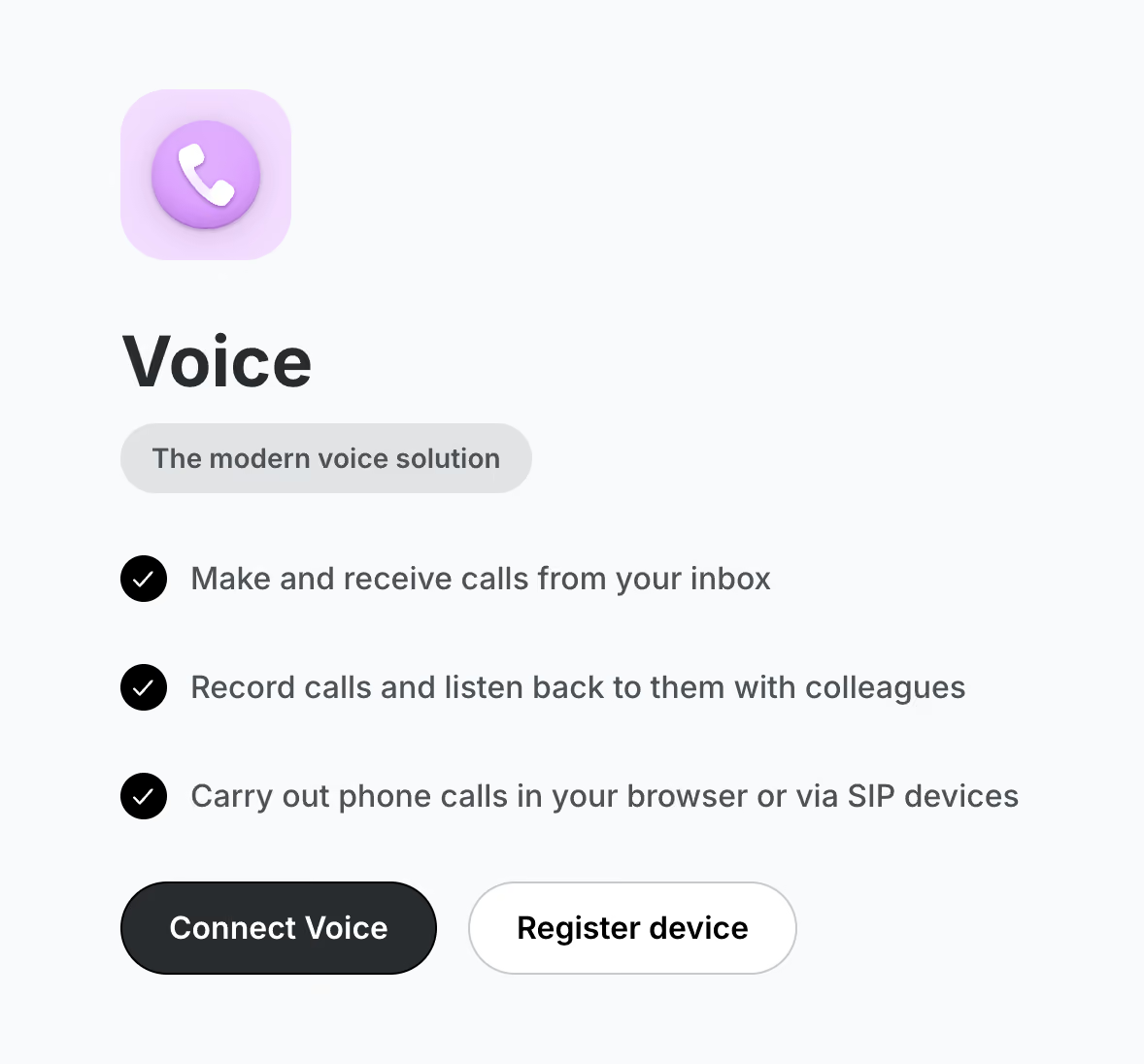
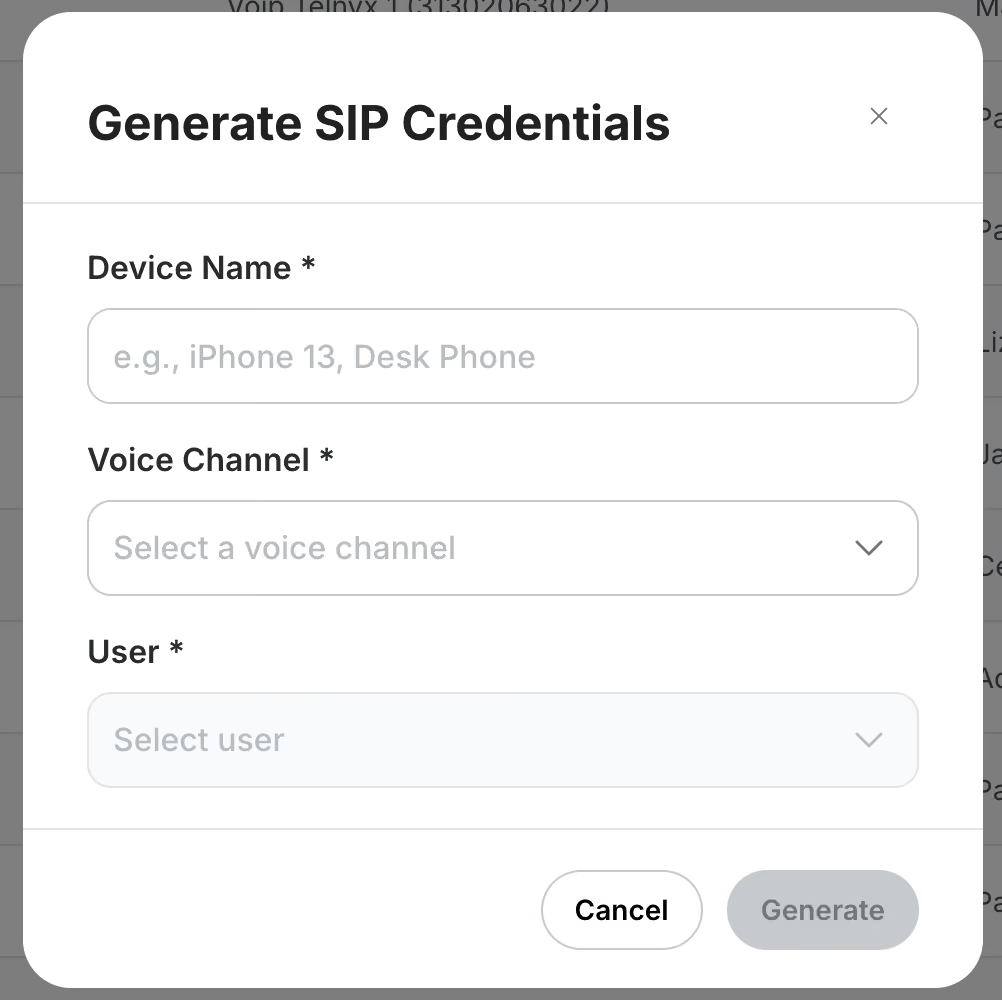
Click on “Register device” for SIP credentials
- Go to https://app.trengo.com/admin/channels2/voip
- Click Register device
- Click Add device
- Configure the device:
- Fill in an internal name (Agent name + mobile / desktop e.g.)
- Select the Trengo Voice channel
- Select the user (agent) it should be linked to
After saving, you will see the SIP credentials needed for setup, which includes a SIP Username, SIP Password, and SIP Domain.
This selected and linked user will be used for ticket creation and assignment, call logging and future metrics and reporting.
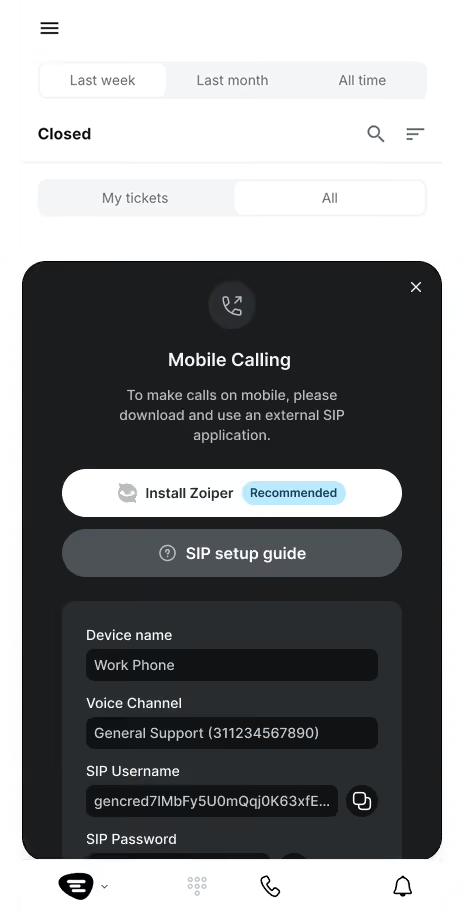
Agents can access their own SIP credentials through the Trengo app
You can sent the SIP credentials and SIP setup guide manually to your agents or your agents can access the SIP credentials & SIP setup guide when they open the Trengo app on mobile.
Step 2: Install SIP app
Linphone for Android, Desktop or MacOS (scroll down for iOS)
Setup
- Open the Linphone application
- On the home screen, select Third-Party SIP Account
- Choose for “Enter your SIP account details”, generated in Trengo
- Tap or click Login
Once successfully logged in:
- Your SIP account is shows a green status
- You can start making and receiving calls via Trengo Voice
Zoiper for iOS
Setup (costs are involved per Zoiper installation for app & push service)
- Purchase & open the Zoiper application.
- Go to Accounts → Have an account → Manual configuration → SIP account → fill in the SIP credentials. Caller ID is the SIP username.
Once the app is successfully configured:
- Go to Settings.
- Select Premium features.
- Purchase Push as add-on
- Choose a subscription option (e.g., 1 month or 1 year) and proceed with the payment.
- Ensure "Push" is enabled in your SIP account settings.
Step 3: Required mobile settings for mobile apps
If you have chosen mobile, follow the steps below in order to be sure your mobile phone will deliver push notifications on incoming calls. Often default mobile battery settings are overruling installed apps, which needs to be changed/allowed manually.
Android
Make the following configurations:
- Settings > Apps > Linphone > Battery > select “Unlimited”
iOS
💡Make sure you have purchased the Zoiper Premium feature Push.
The most effective method is disabling Background App Refresh restrictions for the app and to prevent that the battery goes into Low battery mode.
Make the following configurations:
- Settings > Battery > Low Power Mode > Off
- Settings > General > Background App Refresh > On > Wifi / Cellular Data
- Settings > General > Background App Refresh > Switch on for Zoiper
Best practices SIP calling
When using an mobile SIP app:
- Incoming calls will ring directly in the app or device
- Outgoing calls can be made from the dial pad
- Calls are logged in Trengo under the linked user (when generating SIP credentials)
Remember: all advanced call handling must be done inside Trengo, not in the SIP software, like welcome message, voicemail etc.
Wired SIP phone setup
You can also connect Trengo Voice to a SIP desk phone via WIFI or ethernet.
If this is wished, please reach out to us so we can help you setting up the right settings in the hardware of our suggested and tested SIP devices.

