




How to Set Up WhatsApp Coexistence with Trengo
WhatsApp coexistence allows you to sync your WhatsApp Business app chats directly with Trengo. This setup is ideal for small businesses that want to maintain their chat history and continue using features like group chats while managing conversations within Trengo.
Follow these steps to connect your WhatsApp Business app number to Trengo:
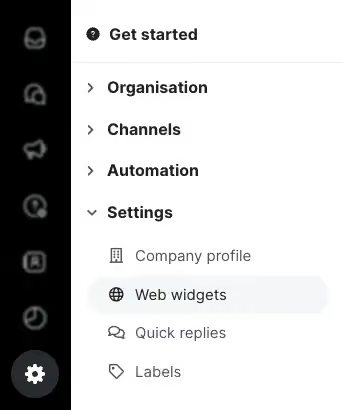
- Navigate to WhatsApp Settings: In your Trengo account, go to Settings and select WhatsApp Business.
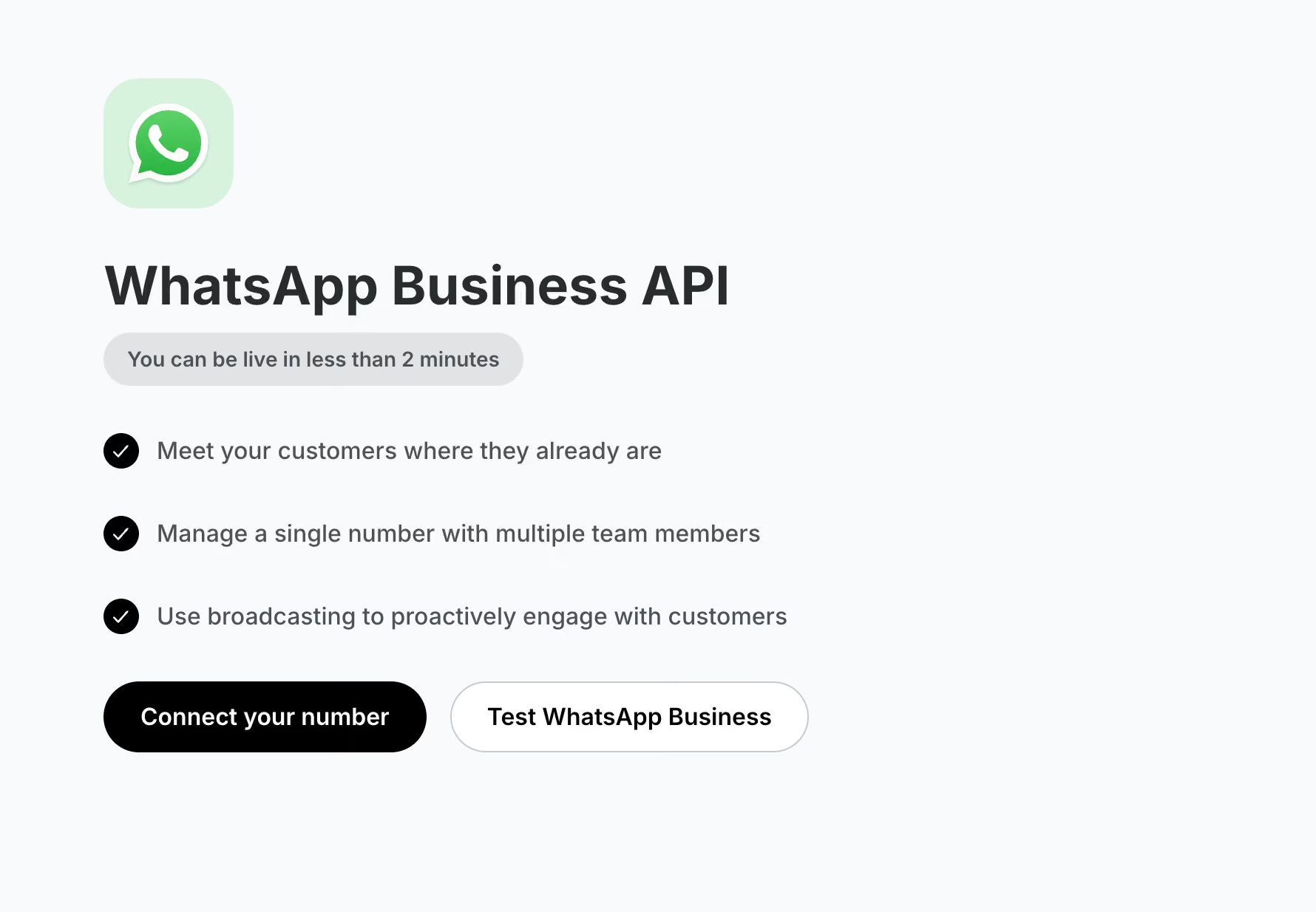
- Initiate Connection: Click on the Connect your number button.
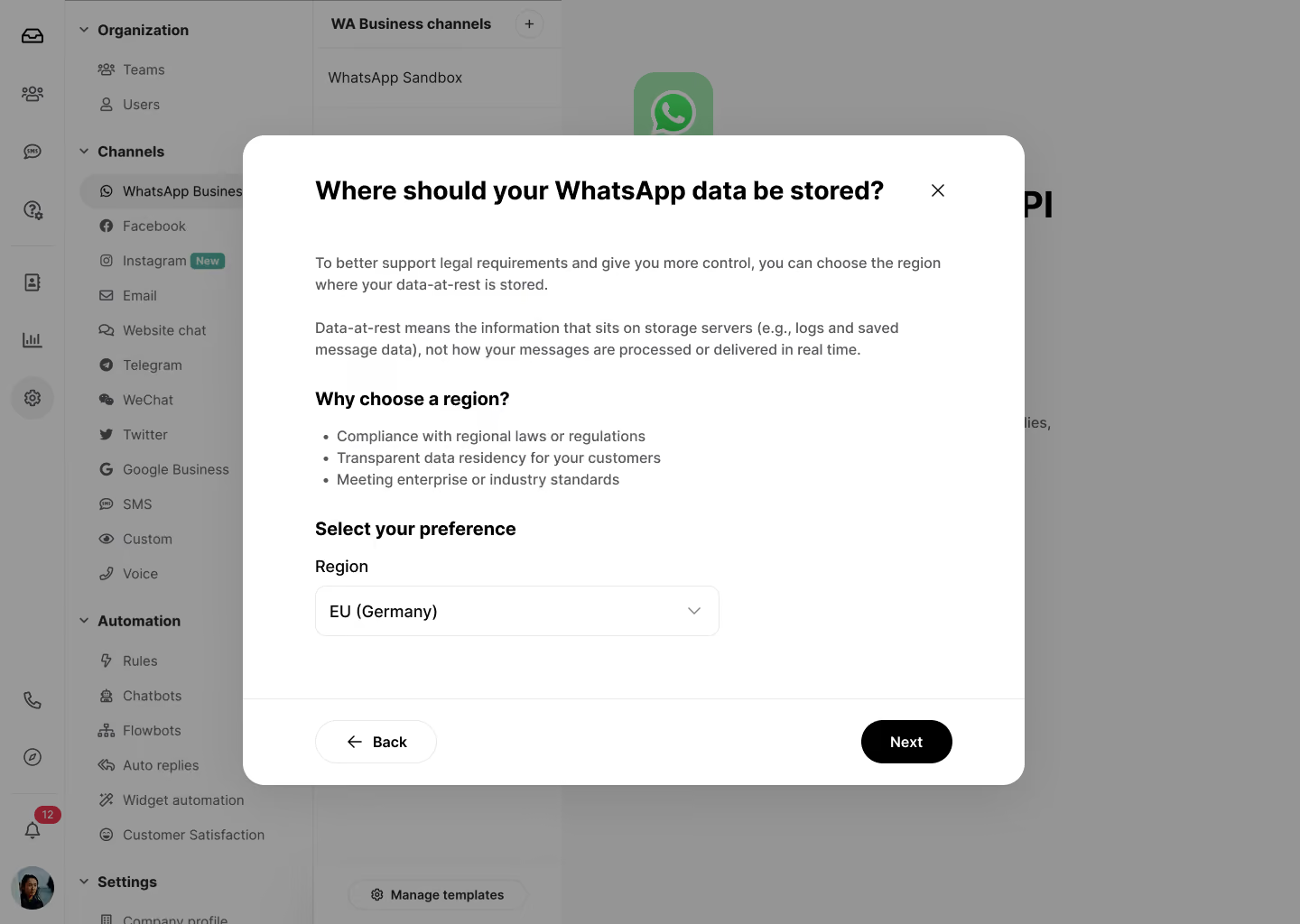
- Select Data Region: You will be prompted to select your preferred region for storing WhatsApp data.
- Choose Coexistence: When presented with connection options, select Coexistence.

- Log in to Meta: A pop-up will appear requesting you to connect with Facebook. Log in to your Meta account.
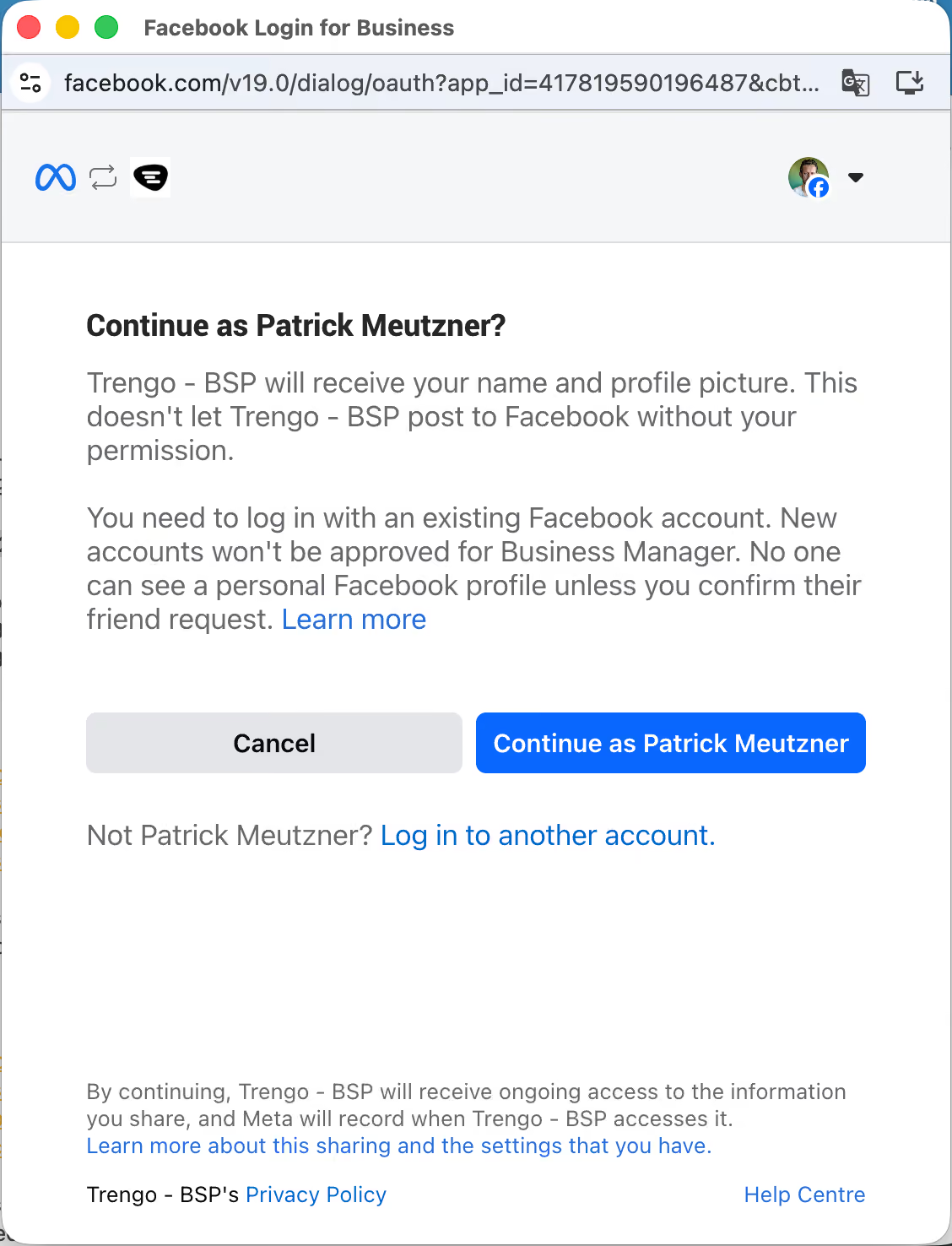
- Select Business Account: Choose the verified Facebook Business account you wish to connect.
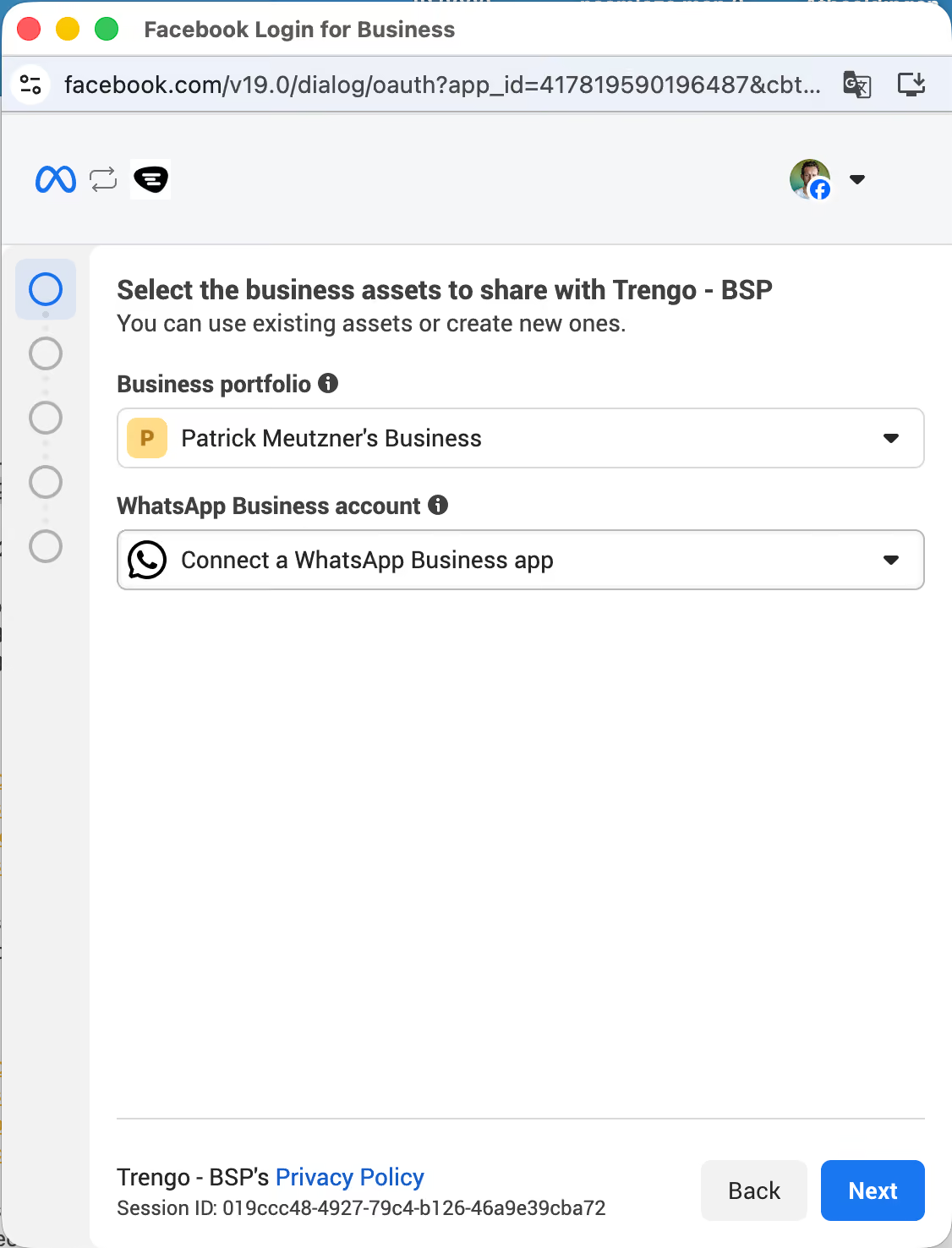
- Choose WhatsApp Business App: Select the option to connect to the WhatsApp Business app from your list of created accounts.
- Enter Phone Number: Provide the mobile phone number associated with your WhatsApp Business app.
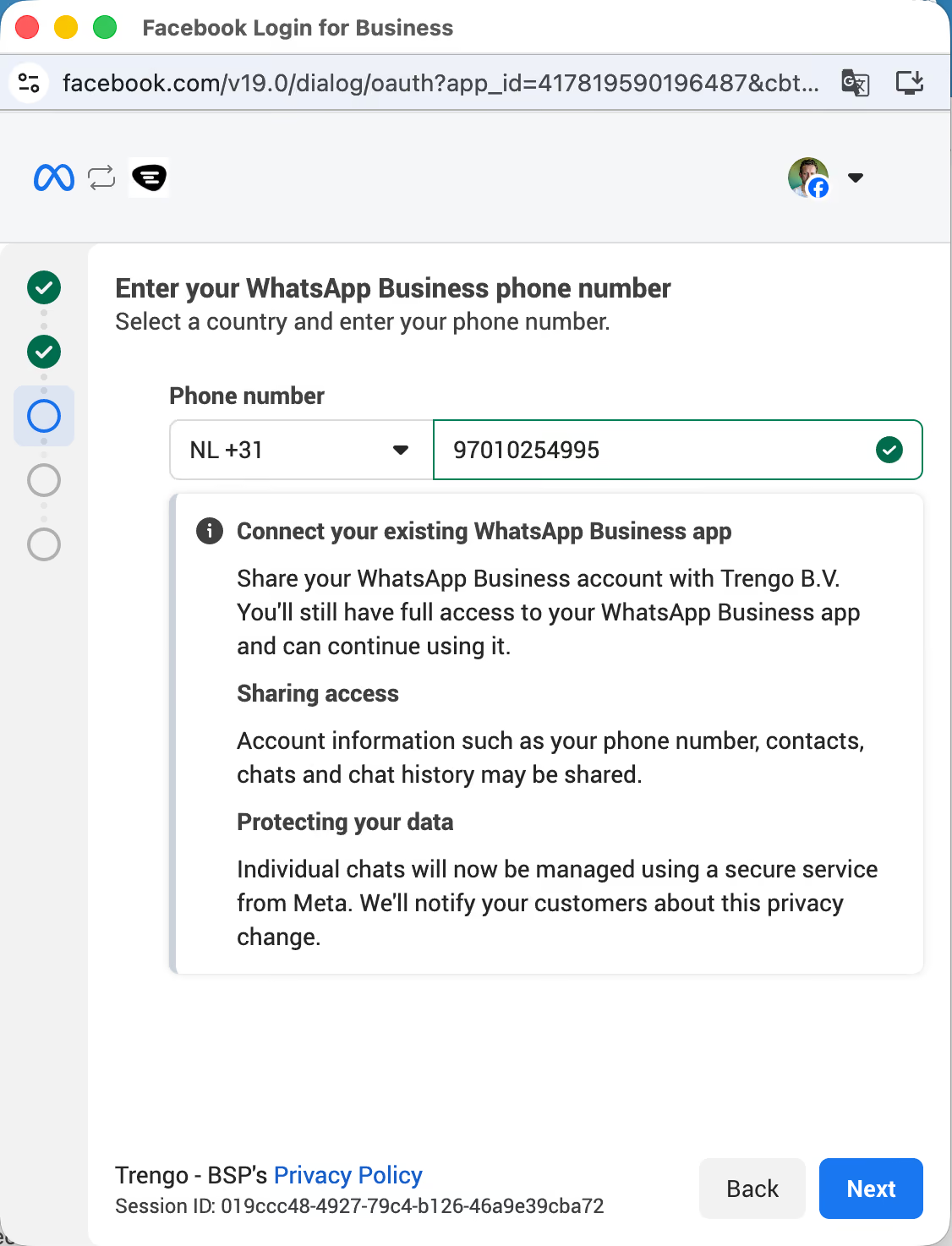
- Verify the Connection: You will receive a verification code directly within your WhatsApp Business app. Enter this code in Trengo to verify.
- Sync Chats: Scan the provided QR code to sync your chats from your mobile device to Trengo and allow the permissions being asked.
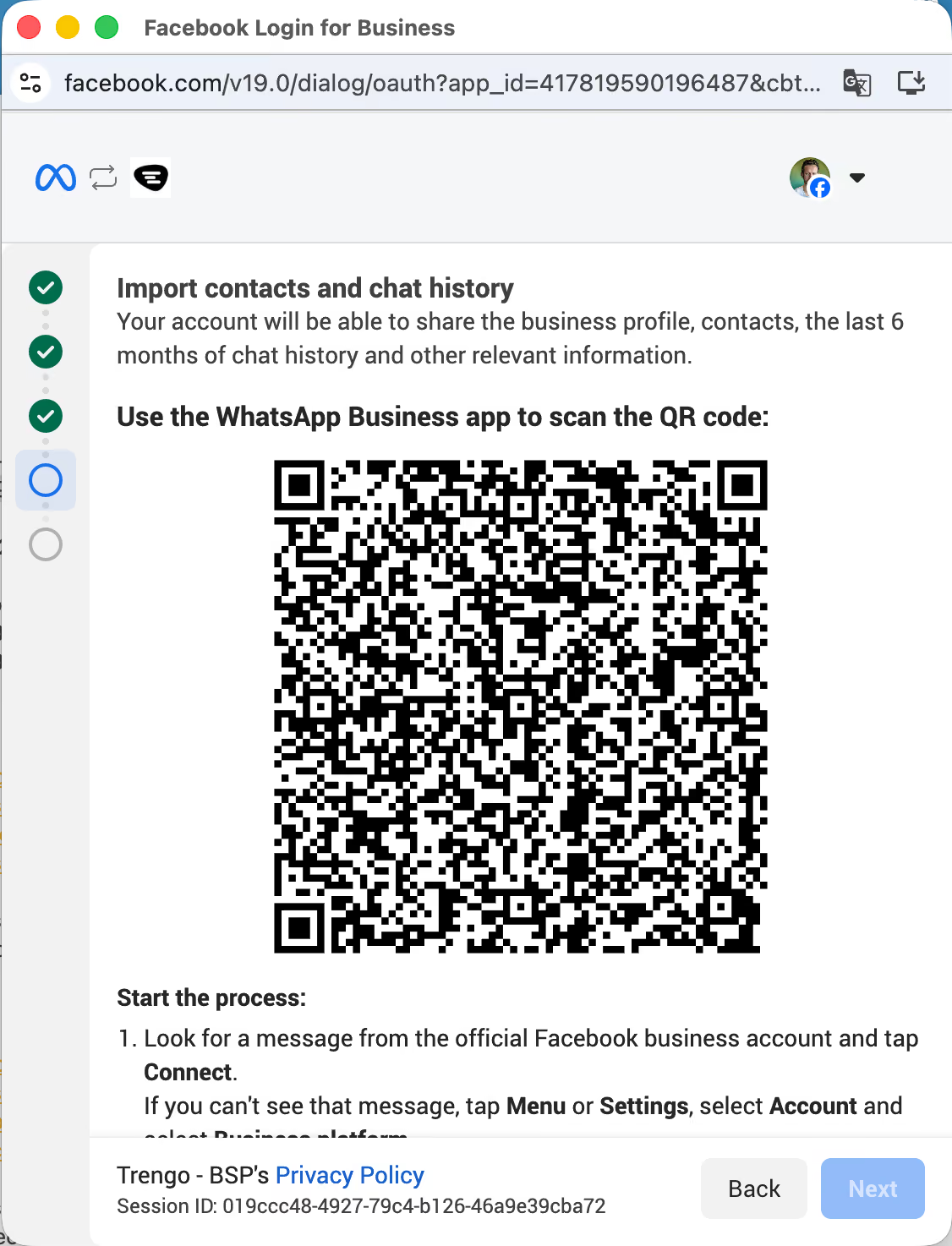
- Your account is now connected. Finish setting up

- Check the details shown in the pop-up are correct and select next
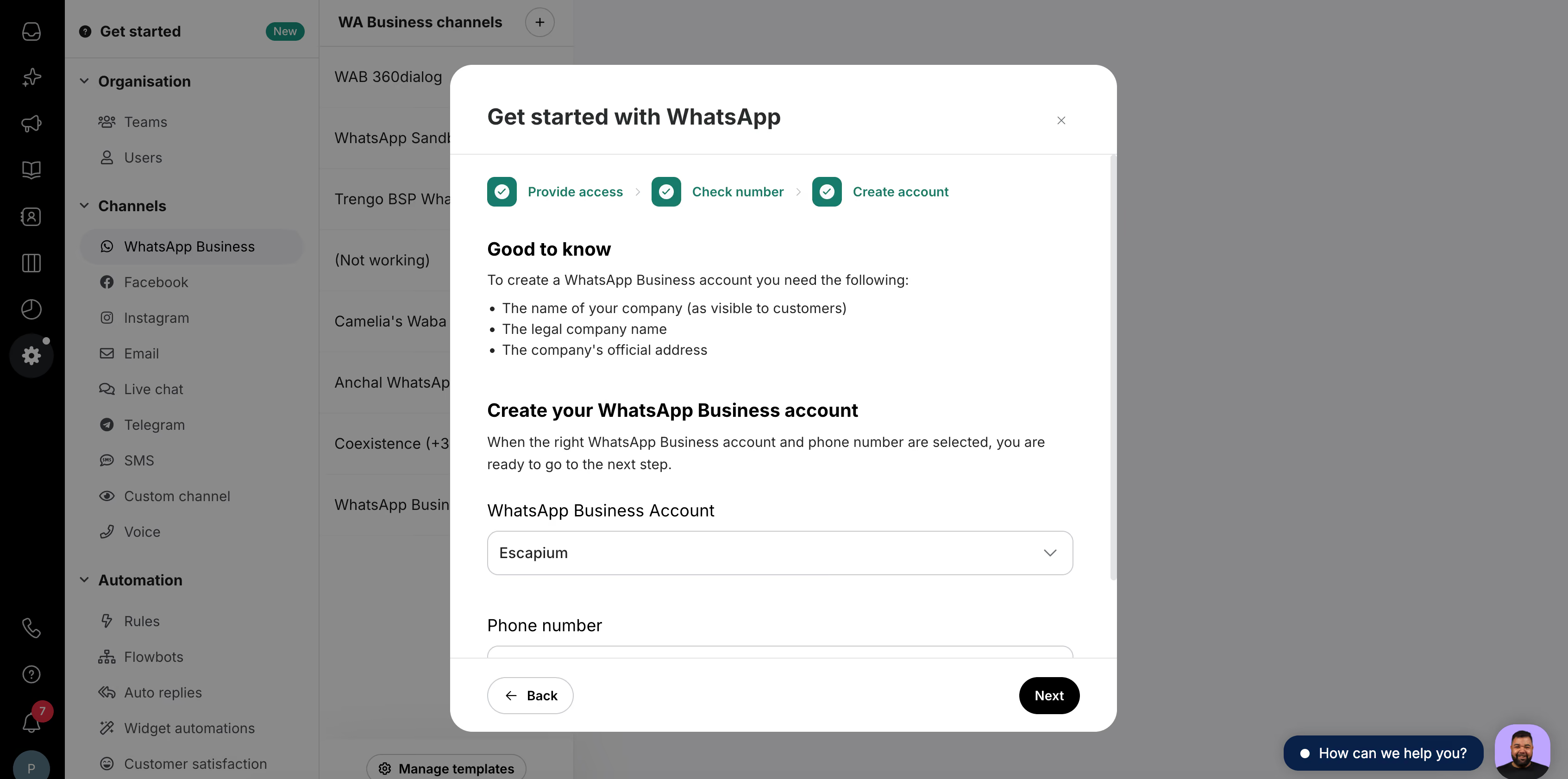
- Your setup is now complete

Important Consideration
- Active Use Requirement: To maintain the connection, the WhatsApp Business app must be used at least once every 14 days. If it is not used within this timeframe, Meta may disconnect the flow between the app and Trengo.

