




In dit artikel wordt uitgelegd hoe u met Trengo Voice telefoongesprekken kunt voeren en ontvangen via een SIP-client (of SIP-telefoon) .
Het gebruik van een SIP-client of -telefoon biedt minder mogelijkheden dan rechtstreeks bellen vanuit Trengo (in de toekomst), maar kan handig zijn als je:
- Bellen en gebeld worden op je mobiel
- Gebruik een desktop-app van een derde partij met pushmeldingen
- Gebruik een vaste telefoon die via ethernet is aangesloten
Belangrijk: beperkingen bij bellen via SIP
Bellen via een SIP-client of een bedrade SIP-telefoon is uitsluitend bedoeld voor standaardgesprekken.
Bij bellen via SIP kunt u niet:
- Oproepen doorverbinden naar medewerkers, teams of externe nummers
- Wachtrijen bekijken of beheren
- Tijdens een gesprek tickets bekijken of bewerken via de software (alleen via app.trengo.com)
- Maak gebruik van de geavanceerde functies tijdens het bellen die beschikbaar zijn in Trengo
Je kunt:
- Bellen
- Oproepen ontvangen
Als u volledige functionaliteit en gespreksafhandeling op grote schaal nodig hebt, raden we u aan om in plaats daarvan te bellen via het Trengo-desktopplatform of de Trengo-desktopapp.
Stap 1: Genereer SIP-inloggegevens in Trengo
Voordat je een mobiele app installeert, moet je eerst SIP-inloggegevens aanmaken. Alleen beheerders hebben toegang tot Trengo en kunnen daar SIP-inloggegevens aanmaken.
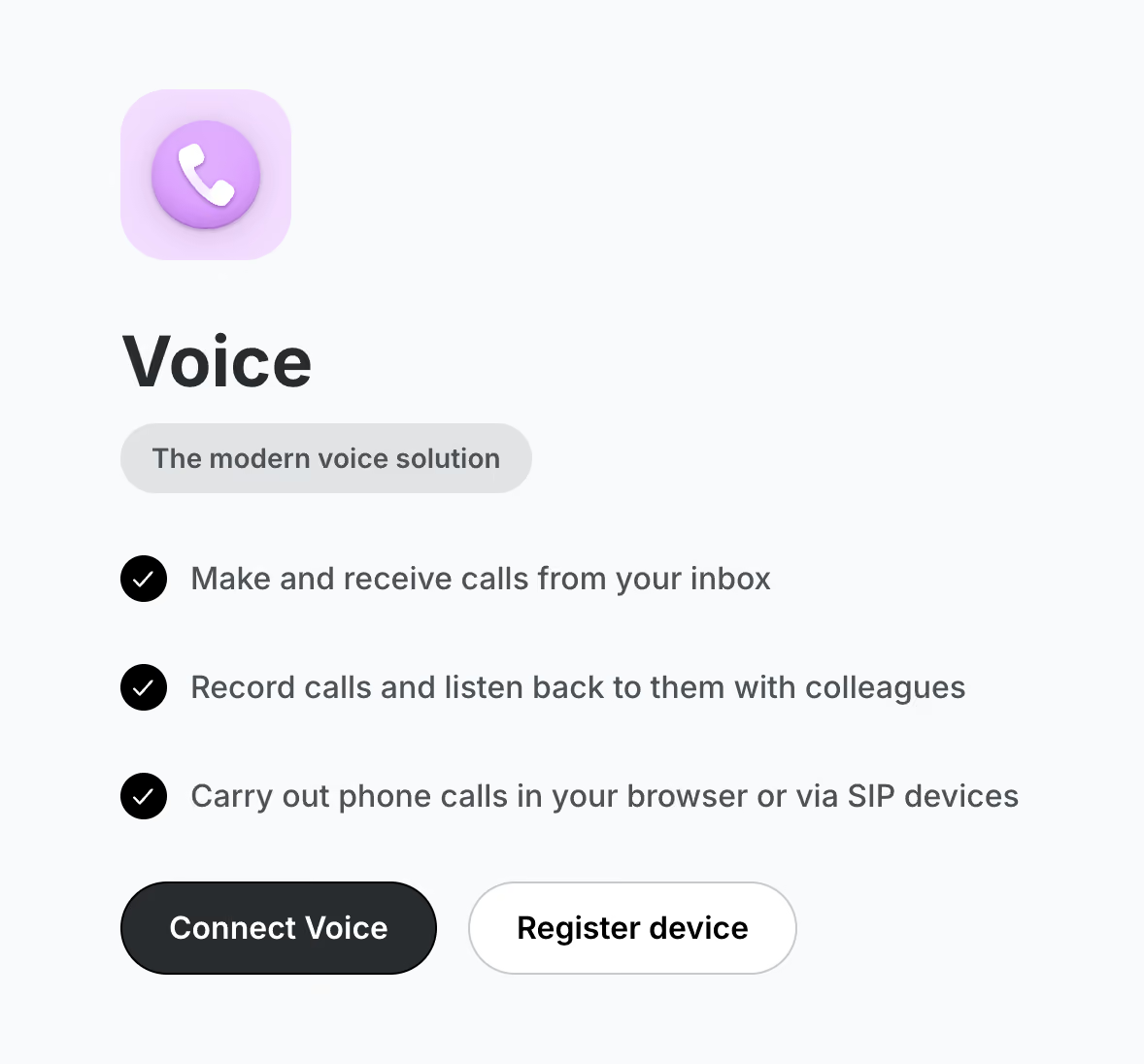
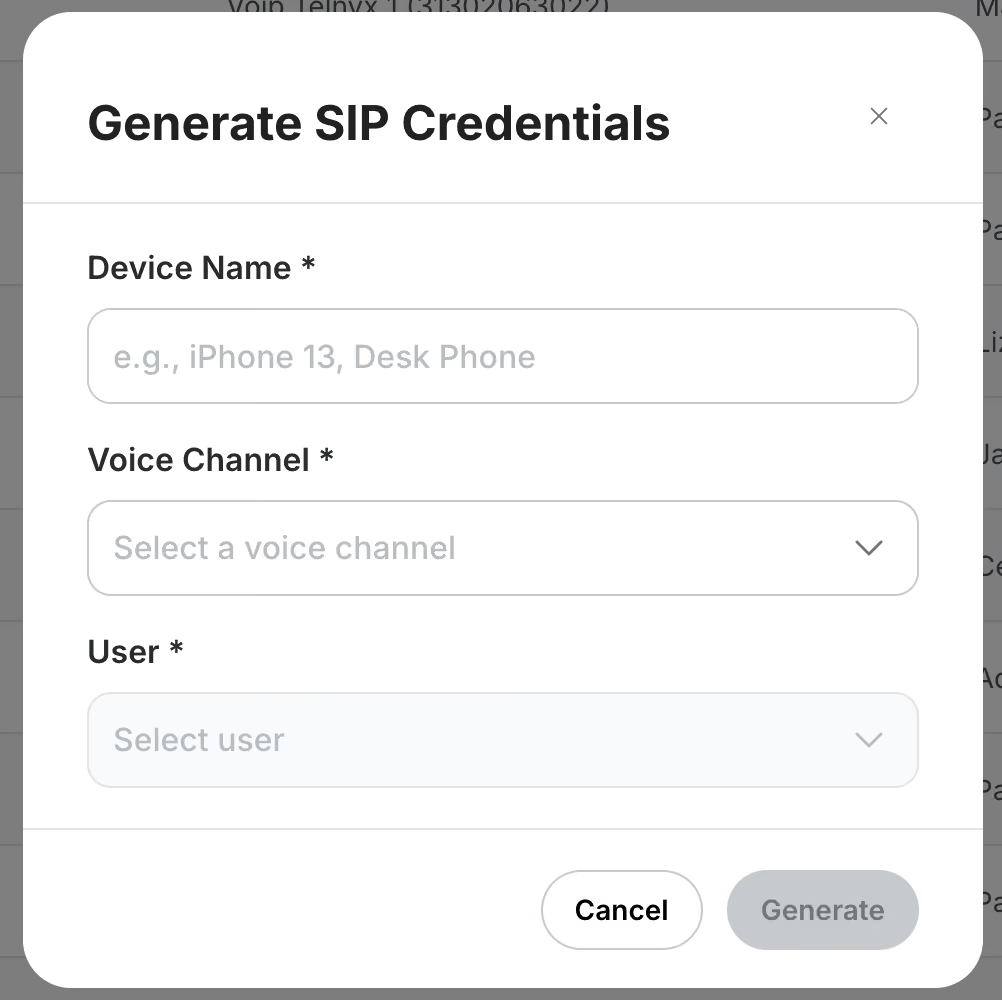
Klik op ‘Apparaat registreren’ voor SIP-inloggegevens
- Ga naar https://app.trengo.com/admin/channels2/voip
- Klik op 'Apparaat registreren'
- Klik op 'Apparaat toevoegen'
- Het apparaat configureren:
- Vul een interne naam in (bijvoorbeeld naam van de medewerker + mobiel/desktop)
- Selecteer het Trengo Voice-kanaal
- Selecteer de gebruiker (medewerker) waaraan het moet worden gekoppeld
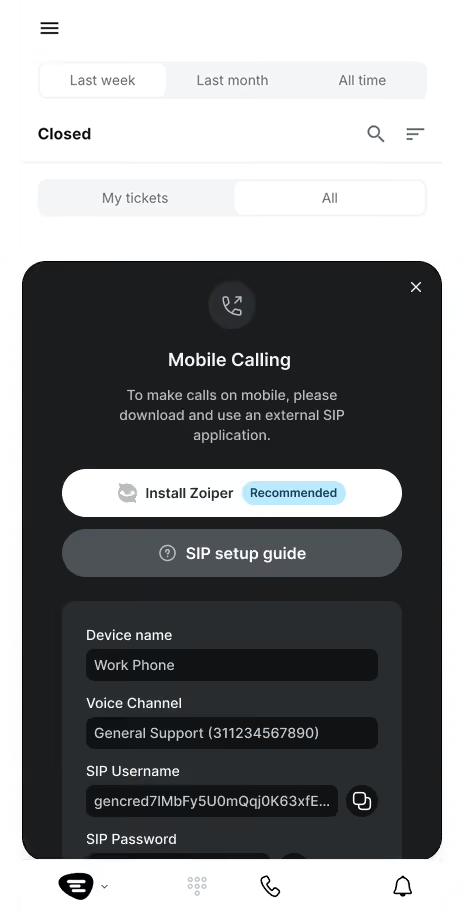
Nadat u hebt opgeslagen, ziet u de SIP-inloggegevens die nodig zijn voor de installatie, waaronder een SIP-gebruikersnaam, een SIP-wachtwoord en een SIP-domein.
Deze geselecteerde en gekoppelde gebruiker wordt gebruikt voor het aanmaken en toewijzen van tickets, het registreren van gesprekken en toekomstige statistieken en rapportages.
Medewerkers hebben via de Trengo-app toegang tot hun eigen SIP-inloggegevens
U kunt de SIP-inloggegevens en de handleiding voor het instellen van SIP handmatig naar uw medewerkers sturen, of uw medewerkers kunnen deze gegevens en handleiding bekijken wanneer ze de Trengo-app op hun mobiele telefoon openen.
Stap 2: Installeer de SIP-app
Linphone voor Android, desktop of macOS (scroll naar beneden voor iOS)
Installatie
- Open de Linphone -app
- Selecteer op het startscherm 'SIP-account van een derde partij'
- Kies voor „Voer uw SIP-accountgegevens in“, die in Trengo zijn aangemaakt
- Tik of klik op Inloggen
Zodra u bent ingelogd:
- Uw SIP-account heeft de status 'groen'
- Je kunt nu bellen en gebeld worden via Trengo Voice
Zoiper voor iOS
Installatie (er zijn kosten verbonden aan elke Zoiper-installatie voor de app en de push-dienst)
- Download en open de Zoiper-app.
- Ga naar Accounts → Een account aanmaken → Handmatige configuratie → SIP-account → vul de SIP-inloggegevens in. De beller-ID is de SIP-gebruikersnaam.
Zodra de app correct is geconfigureerd:
- Ga naar Instellingen.
- Kies Premium-functies.
- Koop Push als add-on
- Kies een abonnementsoptie (bijvoorbeeld 1 maand of 1 jaar) en ga verder met de betaling.
- Zorg ervoor dat "Push" is ingeschakeld in de instellingen van uw SIP-account.
Stap 3: Vereiste instellingen voor mobiele apps
Als je voor je mobiele telefoon hebt gekozen, volg dan de onderstaande stappen om ervoor te zorgen dat je mobiele telefoon pushmeldingen voor inkomende oproepen weergeeft. Vaak hebben de standaardinstellingen voor de batterij van je mobiele telefoon voorrang op geïnstalleerde apps, waardoor je deze instellingen handmatig moet wijzigen of toestaan.
Android
Voer de volgende instellingen uit:
- Instellingen > Apps > Linphone > Batterij > selecteer„Onbeperkt“
iOS
🟒 Zorg ervoor dat je de Zoiper Premium-functie Push hebt aangeschaft.
De meest effectieve methode is om de beperkingen voor het vernieuwen van apps op de achtergrond voor de app uit te schakelen en te voorkomen dat de batterij in de modus ‘Batterij bijna leeg’ terechtkomt.
Voer de volgende instellingen uit:
- Instellingen > Batterij > Energiebesparingsmodus > Uit
- Instellingen > Algemeen > App-vernieuwing op de achtergrond > Aan > Wifi / Mobiele data
- Instellingen > Algemeen > App-vernieuwing op de achtergrond > Inschakelen voor Zoiper
Beste praktijken voor bellen via SIP
Bij gebruik van een mobiele SIP-app:
- Inkomende oproepen gaan direct over in de app of op het apparaat
- Je kunt via het toetsenblok bellen
- Gesprekken worden in Trengo geregistreerd onder de gekoppelde gebruiker (bij het genereren van SIP-inloggegevens)
Let op: alle geavanceerde gespreksafhandeling moet binnen Trengo plaatsvinden, niet in de SIP-software, zoals welkomstberichten, voicemail enz.
Installatie van een bedrade SIP-telefoon
Je kunt Trengo Voice ook via wifi of ethernet aansluiten op een SIP-telefoon.
Mocht u dit wensen, neem dan contact met ons op, zodat wij u kunnen helpen bij het configureren van de juiste instellingen op de hardware van de door ons aanbevolen en geteste SIP-apparaten.

